You have a landscape photo and a form field that wants a square. Or a screenshot with two inches of dead browser chrome around the part anyone actually cares about. Cropping is the most common image edit there is, and it's also the one most "free online" tools quietly upload your file to a server to perform.
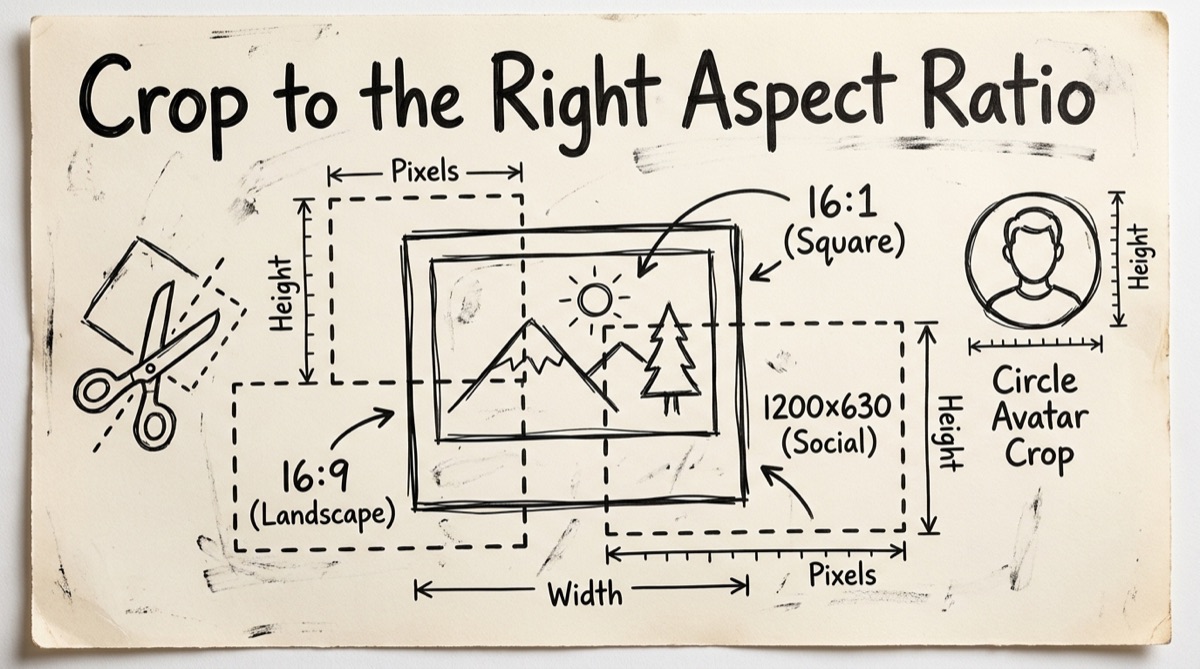
This guide covers what crop ratios actually matter in 2026, the real difference between cropping and resizing, how to do it with a tool that never leaves your browser, and an honest look at where that tool is strong and where it isn't.
Crop vs. Resize: Not the Same Operation
These two get used interchangeably and they shouldn't be.
- Resize scales the entire image up or down. A 4000×3000 photo resized to 800×600 still shows everything in the original frame — just smaller. Aspect ratio is usually preserved.
- Crop cuts a rectangle out of the image and discards everything outside it. A 4000×3000 photo cropped to a 1:1 square keeps only 3000×3000 pixels of the original frame — the rest is gone. Aspect ratio changes to whatever you crop to.
The tell: if your goal is "make this file smaller" or "fit this into a size limit," you want resize. If your goal is "this photo is the wrong shape for where it's going" or "there's stuff in this frame I don't want," you want crop. Often you want both, in sequence — crop to the right shape, then resize to the right file weight. (For the resize half of that pipeline, see how to resize images without losing quality.)
The 2026 Aspect Ratio & Size Cheat Sheet
These are the sizes that actually get checked by a platform, not folklore. Use them as targets; exact pixel counts matter more for some (OG images, app icons) than others (most social feeds now auto-crop to their own container anyway).
| Use case | Ratio | Target size (px) |
|---|---|---|
| Open Graph / link preview image | ~1.91:1 | 1200 × 630 |
| X (Twitter) summary card | 1.91:1 | 1200 × 675 |
| X / Twitter profile header | 3:1 | 1500 × 500 |
| LinkedIn post image | ~1.91:1 | 1200 × 627 |
| LinkedIn cover banner | 4:1 | 1584 × 396 |
| Instagram feed (square) | 1:1 | 1080 × 1080 |
| Instagram feed (portrait) | 4:5 | 1080 × 1350 |
| Stories / Reels / TikTok / Shorts | 9:16 | 1080 × 1920 |
| YouTube thumbnail | 16:9 | 1280 × 720 |
| Standard 4×6 print | 3:2 | 1800 × 1200 |
| App icon — iOS App Store | 1:1 | 1024 × 1024 |
| App icon — Google Play | 1:1 | 512 × 512 |
| Profile photo / avatar | 1:1 | 400 × 400 (varies by platform) |
One correction worth making up front: there's no such thing as a "circle crop" size. Every platform that shows round avatars — Slack, Gmail, X, Discord — takes a square (1:1) upload and masks it into a circle client-side. You never need to crop to a circle yourself; you need a clean square with your subject centered, and the platform does the rest.
How to Crop an Image with OrangeBot's Cropper
The Image Cropper runs entirely on Canvas in your browser — there's no upload endpoint in the code, no network call fires when you crop, and you can verify that yourself (turn off Wi-Fi mid-crop and it keeps working).
- Drop your image. Drag a JPEG, PNG, WebP, BMP, or GIF onto the canvas, or click to browse.
- Pick a ratio, or leave it free. The presets are Free, 1:1, 4:3, 16:9, 3:2, and 2:3. Free gives you an unconstrained box for anything that doesn't match a standard ratio.
- Drag the crop box into position. Move it from the center, or grab any of the eight handles to resize. When a ratio is locked, resizing keeps that ratio automatically. A rule-of-thirds grid overlays the box so you can line up a subject off-center.
- Watch the live pixel readout. Below the ratio buttons, the tool shows the exact output dimensions in real pixels as you adjust — useful for hitting a target size like 1080×1080 without guessing.
- Click Crop, then Download. The result downloads as a PNG. Your original file is never modified — reopen the same source image to start a fresh crop if you want a different region.
For a target like the OG image size (1200×630, ratio ≈1.91:1) that isn't one of the six presets: pick Free, drag until the live readout reads close to 1200×630, then run the output through the Image Resizer to lock the exact pixel dimensions. Two small, honest tools chained together beat one tool pretending to do everything.
Where This Tool Has Real Limits
No point pretending otherwise:
- One image at a time. There's no batch mode. If you need to crop fifty product photos to the same ratio, this isn't the tool — look for a desktop batch processor or a scriptable pipeline.
- Output is always PNG. Crop a JPEG and you get a PNG back, even if you wanted to keep the smaller JPEG file size. Convert it afterward if that matters to you.
- No numeric input for exact pixel crops. You drag and read the live counter; you can't type "1200×630" and have the box snap to it. Fine for most work, mildly annoying if you need exact reproducibility across many crops.
- No rotation or perspective correction. It's a rectangle over a fixed image — if the photo itself is tilted, fix that first elsewhere.
Honest Comparison: What Else Is Out There
- iLoveIMG / similar "IMG" sites: fast, familiar, but your file goes to their servers. Fine for a public product photo, not for anything with a face, a document, or a client name in frame.
- Canva: excellent if you're already building a design and need to crop inside that workflow — but it wants an account, and it's built for templates, not a 10-second crop.
- Photopea: genuinely runs in your browser and doesn't require an upload for basic edits, which is a real strength. But it's a full Photoshop clone with ads and a learning curve — overkill when all you want is a rectangle cut out of one photo.
- Dedicated ratio-lock croppers (cropforme.com, imagesplitter.tools, and similar): closest comparison in spirit — client-side processing, preset ratios, no account. Several of these support batch cropping across multiple files, which OrangeBot's cropper currently doesn't.
If your file is sensitive (a screenshot with account details, an ID photo, an unreleased design) or you just don't want to think about where your image goes, a verified no-upload tool is the right default. If you need batch processing across dozens of files, a dedicated batch cropper or a desktop tool will save you real time.
FAQ
Are my photos uploaded anywhere when I use this cropper?
No. Cropping happens on an HTML canvas in your browser. There's no upload request in the code path — you can confirm it yourself by opening DevTools' Network tab, disabling Wi-Fi, and running a crop. It keeps working because nothing was ever sent out.
What's actually different between cropping and resizing?
Resizing scales the whole image down or up without removing any of the frame. Cropping removes part of the frame to change the shape or focus. If your photo shows too much background, crop it. If the file is too big, resize it.
Can I crop to a perfect circle for an avatar?
Not directly — there's no round-mask preset, and you don't need one. Crop to 1:1 (square) with your subject centered, then upload it. Every platform that displays circular avatars (Slack, Discord, X, Gmail) applies the circular mask itself from a square source image.
How do I hit an exact OG image size like 1200×630?
The six ratio presets don't include OG's 1.91:1 exactly. Use the Free ratio, drag while watching the live pixel readout to get close, then run the crop through the Image Resizer to lock the exact 1200×630 dimensions.
What image formats does the cropper accept, and what do I get back?
Input accepts JPEG, PNG, WebP, BMP, and GIF. Output is always a PNG, regardless of what you uploaded. If you need a smaller JPEG afterward, convert the cropped PNG separately.
Can I crop several images at once?
Not in this tool — it's built for one image at a time so you can frame each crop accurately. For batch work across many files, a dedicated batch cropper or desktop app will be faster.
Cropping is a small operation that shouldn't require an account, a wait, or a decision about whether you trust a stranger's server. Try the Image Cropper directly, or browse the rest of the free tools — including the resizer for the second half of the pipeline and the screenshot-cleanup guide if cropping brought you here from a messy screenshot.