Your podcast episode is 180 MB and your host caps uploads at 100. Your phone recorded a two-hour lecture as an uncompressed WAV the size of a movie. A voice memo you need to email keeps bouncing because it's "too large to attach." In every case the fix is the same — re-encode at a lower bitrate — but "lower bitrate" is where most guides get vague and most tools push you toward a preset with no explanation of what you're trading away.
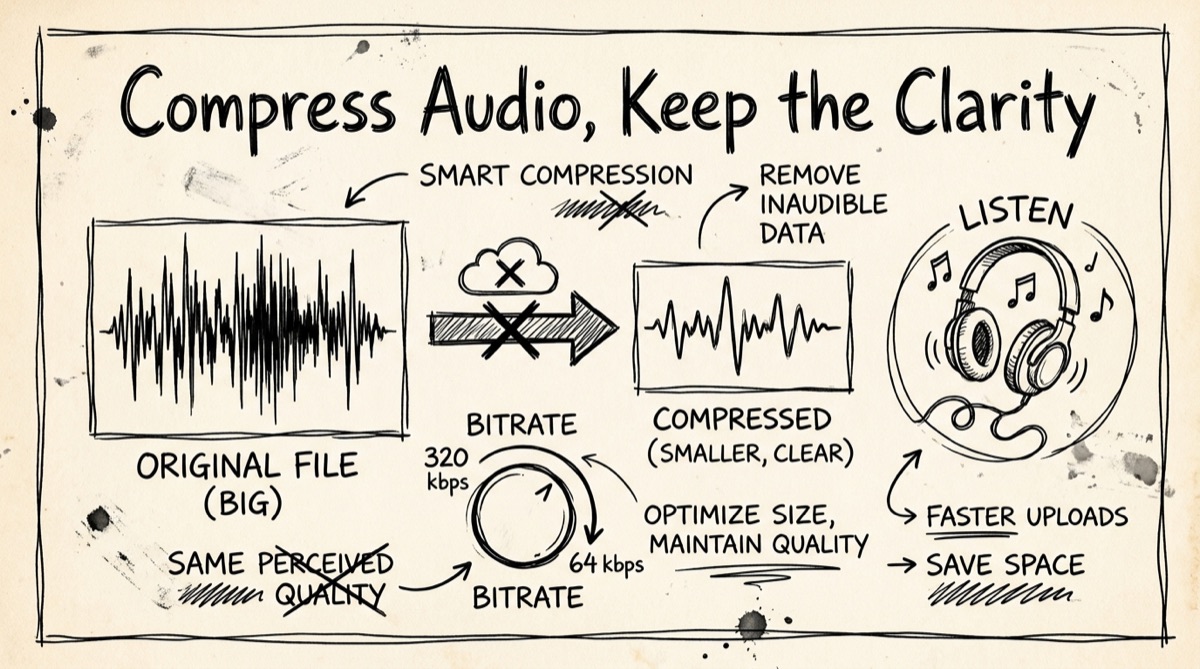
This guide explains what bitrate actually controls, how to pick a target by use case, and how to do the whole thing in your browser without sending a recording of your voice to a server you don't control.
How Audio Bitrate Actually Works
A compressed audio file is bits-per-second of sound times seconds of duration. Bitrate is the main dial. Everything else — sample rate, channel count, codec — is a smaller lever.
CBR vs. VBR. Constant bitrate (CBR) encodes every second at the same target rate, whether that second is silence or a cymbal crash. Variable bitrate (VBR) spends more bits on complex passages and fewer on quiet ones, which usually gets better perceptual quality per byte. Most consumer encoders default to a middle ground called ABR (average bitrate) — you set a target like 128k and the encoder holds close to it without being rigid about every frame. If you've ever wondered why two 128 kbps MP3s from different tools don't sound identical, this is why: the encoder's rate-control strategy matters as much as the number itself.
What the common tiers actually sound like:
- 320 kbps — effectively transparent for music on any speaker. This is what streaming services use for their "high quality" tier. No audible artifacts even on studio monitors.
- 192 kbps — very good for music on headphones or laptop speakers. Most listeners can't reliably ABX this against 320 kbps in casual listening.
- 128 kbps — the historic "good enough" MP3 standard. Transparent for spoken word; on complex music (cymbals, layered synths) trained ears can sometimes catch pre-echo or high-frequency smearing.
- 64 kbps — noticeably degraded for music (cymbals turn to hiss, stereo image collapses) but often fine for a single voice talking, especially after mono downmixing.
Mono vs. stereo for speech. A stereo file carries two independent channels even when the content — one person talking into one microphone — has no meaningful stereo information. Downmixing to mono roughly halves the bit budget needed for the same perceived quality, because you're no longer paying to store a near-duplicate channel. This is the single biggest lever for voice memos and lecture recordings, bigger than dropping another bitrate tier. If your source is genuinely mono-recorded speech, treat it as mono before you touch the bitrate slider.
Sample rate matters less than people think. 44.1 kHz (CD standard) and 48 kHz (video/pro-audio standard) both capture frequencies up to roughly 20-22 kHz, at the edge of human hearing. Dropping to 22.05 kHz halves the sample count and caps captured frequency around 11 kHz — inaudible for typical spoken word, noticeably dull for music. Sample rate is a secondary lever; bitrate does the heavy lifting on file size.
Choosing a Bitrate by Use Case
| Use case | Bitrate | Channels | Approx. size per minute (MP3) |
|---|---|---|---|
| Archival master / mastering reference | 320 kbps | Stereo | ~2.4 MB |
| Music for casual listening | 192 kbps | Stereo | ~1.44 MB |
| Podcast episode, interview | 128 kbps | Stereo or mono | ~0.96 MB (stereo) |
| Voice memo, lecture, meeting recording | 96 kbps | Mono | ~0.72 MB |
| Voicemail, low-fi speech note | 64 kbps | Mono | ~0.48 MB |
The size-per-minute column is just bitrate × 60 seconds ÷ 8 bits, so a 30-minute lecture at 96 kbps lands around 21-22 MB — small enough for email, Discord, or Telegram's upload caps.
Rule of thumb: for anything that's someone talking, mono at 96-128 kbps is close to indistinguishable from the original and shrinks the file dramatically. For music, don't go below 192 kbps unless file size is genuinely more important than fidelity.
How to Compress Audio in Your Browser
orangebot.ai/tools/audio-compressor runs the whole pipeline client-side using ffmpeg.wasm — a real build of FFmpeg compiled to WebAssembly, not a thin wrapper around a server upload. Here's the actual flow:
- Load the FFmpeg engine. First visit downloads the ~31 MB WASM core. It's cached by the browser afterward, so this only happens once.
- Drop your file. Accepts MP3, WAV, AAC, FLAC, OGG, and M4A.
- Pick a bitrate. Buttons for 64k, 96k, 128k, 192k, 256k, and 320k — match it to the use-case table above.
- Pick a sample rate. 22.05, 44.1, or 48 kHz. Leave at 44.1 unless you're deliberately shrinking a voice file further.
- Click Compress Audio. A progress bar tracks the FFmpeg job running entirely in a Web Worker in your tab.
- Compare and download. You get original size, compressed size, and percentage saved side by side, with an audio player for each so you can actually listen before committing to the download.
Worth knowing going in: the tool re-encodes to MP3 regardless of your input format — it's a one-format-out compressor, not a format converter with multiple output codecs. It also processes one file at a time; there's no batch queue or ZIP export. And there's no mono toggle in the UI yet — if your source is stereo and you want the extra savings from downmixing to mono (see above), do that pass first in another tool, then compress the mono file here. None of this is a dealbreaker for the core job — shrink one audio file fast, without uploading it — but it's worth setting expectations before you start.
For genuinely recurring or batch work — a folder of 40 podcast clips, say — a one-line FFmpeg command run locally beats any browser tool:
ffmpeg -i input.wav -c:a libmp3lame -b:a 128k -ar 44100 output.mp3
Wrap it in a shell loop over a directory and you've scripted what the browser tool does one file at a time.
Online Audio Compressors, Compared Honestly
Searching "compress audio online" turns up a long list of tools that mostly do the same job on a server: HappyScribe's audio compressor, FreeConvert, OnlineConverter, and similar sites all accept an upload, re-encode server-side, and hand back a download link, typically with a "files deleted after a few hours" promise you can't independently verify. XConvert stands out for feature depth — it lets you target a specific output size or percentage rather than just a bitrate, offers stereo-to-mono downmixing and silence trimming, and in their own published numbers a 30-minute WAV interview (~300 MB) re-encoded to 96 kbps mono lands around 21 MB, which lines up with the math above. Rendley advertises browser-based processing similar to orangebot's approach.
The honest differentiator isn't features — several server-side tools currently offer more knobs (target-size mode, trimming, mono downmix) than orangebot's audio compressor does today. It's where the processing happens. Any tool that uploads your file is a tool you're trusting with a copy of a private conversation, an unreleased track, or a recorded meeting, for as long as their retention policy says (and however long their backups actually keep it). You can verify a claim of "client-side" yourself in under a minute: open the tool, open your browser's Network panel, turn off Wi-Fi, and try compressing a small file. If it still works, nothing was ever going to leave your machine. We ran this test against orangebot.ai/tools/audio-compressor — it works fully offline after the initial FFmpeg download, which is the whole point of shipping it as WebAssembly instead of a server endpoint.
For a one-off public podcast clip, any of these tools is fine — pick whichever has the feature you need (target size, trimming, mono). For a recorded client call, an unreleased demo, or anything you wouldn't want indexed somewhere, the browser-only route is the only one where "no upload" is a fact you can check rather than a line in a privacy policy.
If your source recording came from a video call rather than a standalone mic, see how to extract audio from a Zoom recording first, and if you're capturing audio in the browser to begin with, recording audio online for free covers that step. Both tools, along with the audio compressor, live in the full tools directory.
FAQ
Does the orangebot audio compressor upload my files anywhere?
No. It loads ffmpeg.wasm once and runs the re-encode in a Web Worker inside your tab. Your audio file never touches a network request — you can confirm this yourself with the browser's Network panel and Wi-Fi off.
What's the difference between CBR and VBR, and which does this tool use?
CBR holds a fixed bitrate every second regardless of content complexity; VBR varies it to spend more bits where the audio needs them. The orangebot compressor sets a target bitrate via FFmpeg's -b:a flag, which behaves as average-bitrate (ABR) encoding — close to CBR, not a true quality-scale VBR mode.
Can I compress multiple files at once?
Not currently — it's one file per pass in the UI. For batch jobs, the FFmpeg command in the how-to section above, run in a loop, is the practical option.
What output format do I get?
MP3, at whatever bitrate and sample rate you choose, regardless of your input format. It's a compressor, not a multi-format converter.
Will lowering the bitrate ruin quality for music?
Below 128 kbps, yes, noticeably — cymbals and dense mixes are where lossy encoders show their work first. For music, stay at 192 kbps or higher. For a single speaking voice, 96-128 kbps mono is close to indistinguishable from the source.
Is there a file length or size limit?
No hard limit in the code, but the browser has to hold the decoded audio in memory during processing, so very long files (multi-hour recordings) will take longer and use more RAM than a five-minute clip. Most laptops handle an hour-plus recording without issue.