Your screen recording is 340 MB and Slack caps uploads at 1 GB but your team's Wi-Fi doesn't. Your phone video is 180 MB and Discord silently truncates anything over 25 MB unless you're paying for Nitro. Email attachments still choke around 25 MB like it's 2009. You need the file smaller, and you need it to still look like a video instead of a pile of blocky artifacts.
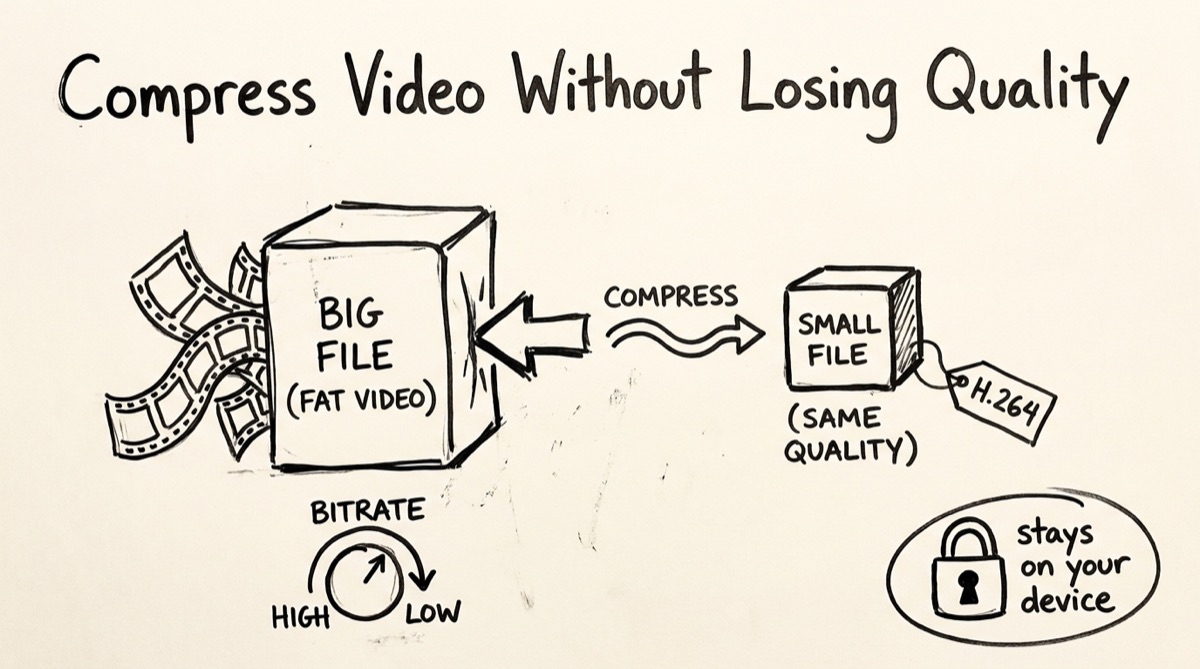
This guide covers what actually makes a video file smaller, how to think about the quality/size tradeoff instead of guessing, how to do it in your browser with nothing uploaded, and the equivalent ffmpeg command if you'd rather run it locally.
What Actually Shrinks a Video File
A video file's size is almost entirely a function of three things: bitrate, resolution, and codec. Everything else — container format, metadata, audio track — is a rounding error by comparison.
Bitrate is the big lever. It's how many bits per second the encoder is allowed to spend describing the picture. A 1080p phone video shot at 20 Mbps and the same clip re-encoded at 3 Mbps can differ by 6-7x in file size, and for most everyday footage (talking heads, screen recordings, static shots) the eye barely notices unless you're pixel-peeping. Where it does show: fast motion, fine text, and grain — those need more bits to stay clean, and low-bitrate encodes turn them into mush first.
Resolution matters because fewer pixels means less data per frame, full stop. Downscaling a 4K source to 1080p before compressing typically saves more than just tightening the bitrate on the 4K version, since it cuts the raw pixel count by 75%. If your audience is watching on a phone or in a Slack thread, they were never seeing 4K detail anyway.
Codec is the compression algorithm itself, and it's the variable most people don't know they're choosing. H.264 (AVC) is the default nearly everywhere — every browser, phone, and video app decodes it without a hiccup, and it's what almost all client-side and cheap online compressors use because software encoders are fast and well-supported. H.265 (HEVC) and AV1 are newer codecs that can hit the same visual quality at roughly 30-50% lower bitrate, but cost more CPU time to encode and some browsers or older devices still choke on playback. For "email this to my coworker" or "post to Discord," H.264 is still the safe, boring, correct choice — universal compatibility beats a marginal size win nobody outside a codec nerd will notice.
Target-Size Thinking vs CRF Thinking
There are two mental models for compressing a video, and mixing them up is why people end up re-compressing the same file five times.
Target-size thinking starts from the constraint: "this has to be under 25 MB." You back-calculate a bitrate from (target size in bits) / (video duration in seconds), feed that to the encoder, and it hits roughly that size. This is what dedicated "compress to fit Discord/email" tools do under the hood — some expose a target-size field directly, others expose bitrate presets that map to common size targets.
CRF thinking starts from quality instead. CRF (Constant Rate Factor) is a 0-51 dial where lower numbers mean higher quality and bigger files, higher numbers mean smaller files and worse quality. You tell the encoder "spend however many bits it takes to hit this quality level," and file size falls out as a side effect. CRF 18-23 is visually near-lossless for most content, CRF 24-30 is the "looks fine, noticeably smaller" zone most compressors default to, and anything past 35 starts showing blocky artifacts on motion.
The practical difference: target-size mode guarantees you fit under a size cap but can produce inconsistent quality (a busy scene gets starved of bits to hold the average). CRF mode gives consistent quality across the whole video, but the final size is an estimate until you run it — if you're aiming for a cap, you check the output and nudge the CRF up or down. Target-size logic is faster for "just get it under the limit." CRF is the more honest tool for "compress this without it looking bad," which is why encoders — including ffmpeg itself — default to CRF.
How to Compress a Video in Your Browser (No Upload)
orangebot.ai/tools/video-compressor uses CRF-based quality presets, not a target-size input — worth knowing going in if you were expecting to type "25 MB" and get exactly that. Here's the actual flow:
- Open orangebot.ai/tools/video-compressor and click "Load FFmpeg Engine." This downloads the ffmpeg.wasm core (~31 MB) into your browser tab — a one-time cost per session, cached afterward. Nothing about your video touches this download; it's just the compression engine itself.
- Drop your file. MP4, MOV, AVI, WebM, and MKV are all accepted.
- Pick a quality preset or drag the CRF slider. The three presets map to CRF values under the hood: Low/smallest file (CRF 40), Medium (CRF 28, the default), and High/best quality (CRF 22). You can also drag the raw slider anywhere from 18 (highest quality, largest file) to 51 (smallest file, visible artifacts) if you want finer control than the presets give you.
- Click Compress and watch the progress bar. The tool re-encodes to H.264 video (
libx264) with AAC audio at a fixed 128 kbps, and always outputs an MP4 regardless of what format you fed it — so a.mkvor.webminput comes out as.mp4. - Download the result. No account, no watermark, no queue.
Worth calling out explicitly: this runs entirely on ffmpeg.wasm inside your tab. Your video is never uploaded anywhere — no server round trip, no third party ever holds a copy. The tradeoff is that it's bound by your browser's memory and CPU, not a beefy server. WebAssembly encoding runs slower than native ffmpeg, and very large files (multi-GB, or very long recordings) can hit browser memory ceilings and fail outright — if that happens, the desktop ffmpeg route below has no such limit. For anything under a few hundred MB and a handful of minutes, it's comfortably fast enough to sit and watch the progress bar.
One current limitation worth knowing: there's no resolution/scaling control in the tool yet, and no way to strip the audio track — every output keeps the source resolution and gets a re-encoded audio track. If you need to downscale resolution or drop audio entirely, the ffmpeg command below gives you both.
The ffmpeg CLI Version (For Power Users)
If you have ffmpeg installed locally and want more control — resolution scaling, two-pass target-bitrate encoding, or just don't want to wait on WASM — here's the CRF equivalent of what the browser tool does:
# CRF mode (recommended default) — quality-driven, size falls out as a result
ffmpeg -i input.mp4 -c:v libx264 -crf 23 -preset medium \
  -c:a aac -b:a 128k -movflags +faststart output.mp4
And a target-size two-pass version if you have a hard size cap (say, 25 MB for a 2-minute clip):
# Target-size mode — back-calculate bitrate, then two-pass encode for accuracy
DURATION=120   # seconds
TARGET_MB=25
BITRATE=$(( TARGET_MB * 8192 / DURATION ))k   # rough video+audio bitrate budget

ffmpeg -y -i input.mp4 -c:v libx264 -b:v "$BITRATE" -pass 1 \
  -an -f mp4 /dev/null
ffmpeg -i input.mp4 -c:v libx264 -b:v "$BITRATE" -pass 2 \
  -c:a aac -b:a 128k -movflags +faststart output.mp4
Swap -preset medium for -preset slow if you have CPU time to spare and want smaller files at the same CRF, or -preset fast/-preset veryfast if you're compressing in bulk and don't mind a slightly larger output for the time saved.
Honest Comparison: Where Orangebot Fits
None of these are bad tools — they solve the same problem with different tradeoffs. Here's how the free-tier landscape actually looks:
| Tool | Runs locally? | Target-size mode | Codec options | Notes |
|---|---|---|---|---|
| orangebot.ai/tools/video-compressor | Yes, ffmpeg.wasm | No (CRF presets/slider) | H.264 only | No upload, no account, no watermark; browser memory-bound |
| VidShift | Yes (browser-based) | Yes, presets for Email/WhatsApp/Slack | H.264 | Explicit size-target presets, no upload |
| Kommodo | Yes, WebCodecs when supported | Not confirmed | Browser-dependent | Hardware-accelerated encode when available |
| RedPanda Compress | Claims client-side | Yes, custom target size | Not confirmed | Markets itself on "any target size" |
| Rotato (tools.rotato.app) | Client-side | Not confirmed | Not confirmed | Bundled with other free video utilities (speed, subtitles) |
| Clideo, Vimeo's compressor | Server-side (upload required) | Yes | Multiple | Convenient but your file leaves your device |
If your priority is "never upload my file, ever" and you're fine dialing in CRF instead of typing a target size, orangebot's tool is the straightforward pick. If you need an exact size cap without doing any bitrate math, VidShift's presets do that math for you. If your file is sensitive — an unreleased demo, an internal recording, anything with faces or screens you don't want passing through someone else's server — skip the upload-based tools entirely regardless of what they promise about deletion policies.
FAQ
Does compressing a video always reduce quality?
Technically yes — re-encoding is lossy by definition. In practice, at CRF 22-26 the difference is invisible on a phone or laptop screen for typical footage. It shows mainly in fast motion, fine text, or if you re-compress an already-compressed file multiple times.
Why is my compressed video still large?
If the source is already low-bitrate (like a Zoom recording downloaded at low quality), there's nothing left to squeeze — you're compressing noise, not redundancy. Also check resolution: a 4K source at any CRF setting is still bigger than a properly downscaled 1080p version, since no browser-based tool here currently offers resolution scaling.
Can I compress a video without losing audio quality?
The orangebot tool re-encodes audio to AAC at a fixed 128 kbps regardless of source — fine for speech and most music. If you need the original audio track preserved untouched, use the ffmpeg CLI command above with -c:a copy.
What's the difference between this and a video-to-GIF converter?
This keeps your output as a video file (MP4) at a smaller size. If you need something that autoplays without a video player — a README, a forum post, a design mockup — a GIF is the format for that, though GIFs usually run larger than an equivalently short compressed MP4. See our guide to converting video to GIF without a watermark if that's the job.
My video came from a Zoom recording — should I compress it or extract just the audio?
If you need the visual (screen share, slides, faces), compress it with the steps above. If you only need what was said, extracting just the audio cuts file size by 90%+ compared to any video compression — see how to extract audio from a Zoom recording.
Is there a file size limit on the browser tool?
Nothing hard-coded, but ffmpeg.wasm runs inside your browser's memory sandbox, so very large files can fail with an out-of-memory error rather than a clean "file too big" message. If that happens, the ffmpeg CLI has no such ceiling.
For more free, no-upload utilities like this one, browse the full tools directory.