You AirDropped a video from your iPhone and it landed as a .mov that won't play in the presentation software at work. Or someone sent a podcast interview as a 400 MB .wav and you just need the .mp3 for your phone. Or your screen recorder only exports .mkv and the platform you're uploading to only accepts .mp4. None of this is exotic — it's the most common file friction on the internet — and yet the fix usually involves either installing software or handing your file to a stranger's server.
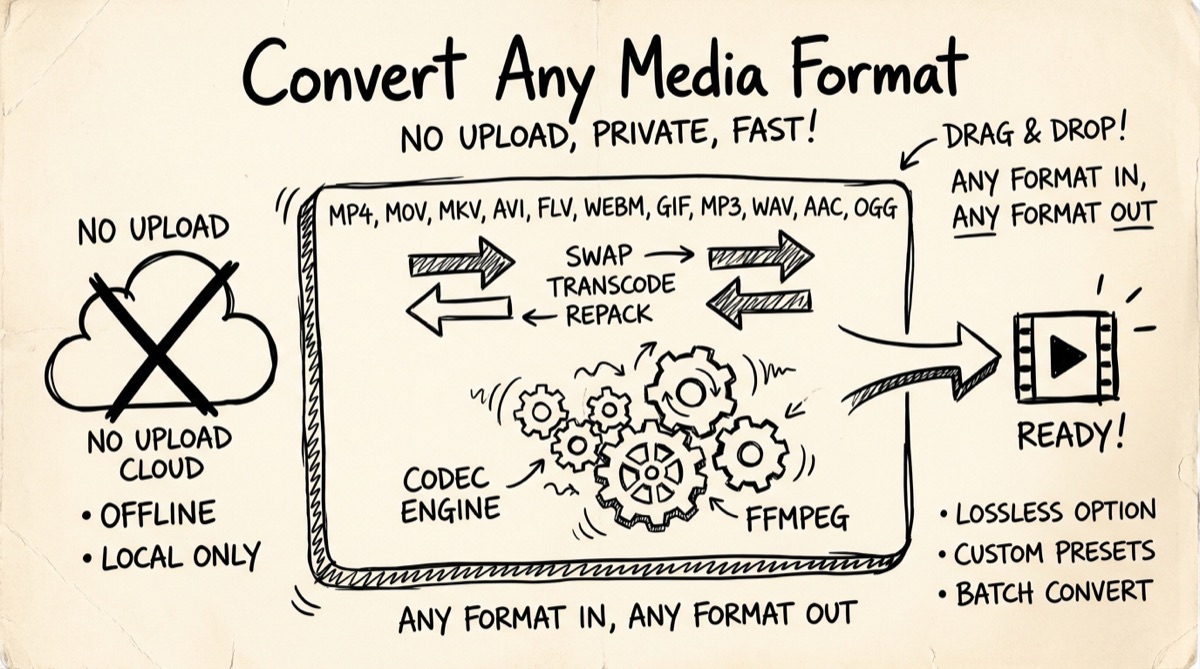
This guide covers the mental model that explains why conversion is confusing in the first place, the format pairs people actually need, a walkthrough of doing it entirely client-side, and an honest look at how the popular online converters compare on file size limits and queues.
Containers vs. Codecs: The Model That Explains 90% of Conversion Confusion
Most conversion confusion comes from treating "MP4" and "MOV" like they're comparable to "JPEG" and "PNG" — fully self-contained formats. They're not. A video file is actually two things stacked together.
The container is the wrapper — .mp4, .mov, .webm, .mkv, .avi. It defines how video, audio, subtitles, and metadata streams are packaged and synced, but says almost nothing about how the video itself is encoded.
The codec is the compression algorithm applied to the data inside the container. H.264 and H.265 (HEVC) are video codecs. VP9 is Google's video codec, used mostly inside WebM. AAC, MP3, Opus, and FLAC are audio codecs.
Here's the part that trips people up: the same codec can live inside different containers, and the same container can hold different codecs. An H.264-encoded video wrapped in MP4 or MOV looks nearly identical, because Apple's QuickTime .mov and MPEG's .mp4 are close cousins at the container level. That's why converting MOV → MP4 is frequently just a "remux" — repackaging the same codec data into a new wrapper — rather than a full re-encode, finishing almost instantly with zero quality loss.
Compare that to MP4 → WebM. MP4 typically carries H.264 video and AAC audio. WebM is built around VP8/VP9 video and Vorbis/Opus audio — codecs an MP4 almost never contains. There's no shortcut: the video has to be fully decoded and re-encoded into VP8/VP9. That's real, lossy, time-consuming transcoding, not a quick repackage — which is also why a WebM re-encode can look slightly softer than the MOV it came from.
Once you separate "what wrapper is this in" from "what algorithm compressed the data inside it," conversion stops being mysterious: you're either repackaging (fast, lossless) or transcoding (slower, lossy if either side uses lossy compression).
Common Conversion Pairs, and When You Actually Need Them
| From → To | Why people need it | Remux or re-encode? |
|---|---|---|
| MOV → MP4 | iPhone/Mac footage into something Windows, YouTube, or an LMS accepts without complaint | Usually near-instant remux (same H.264/AAC core) |
| MKV → MP4 | Downloaded or ripped video needs to play on Apple TV, iOS, or older smart TVs that don't support MKV containers | Remux if codecs match, otherwise re-encode |
| Any video → WebM | Smaller file size for web embedding; modern browsers play WebM natively with no plugin | Full re-encode |
| WAV → MP3 | A raw recording (podcast, voice memo, field recording) needs to shrink for email or a phone | Full re-encode, but the quality loss is usually inaudible above 192 kbps |
| Video → MP3/AAC | You only need the audio — an interview, a lecture, a Zoom call — not the picture | Extraction, sometimes with a codec change |
| AAC/M4A → MP3 | Podcast or voice-memo files need to play on an older device or app that only reads MP3 | Full re-encode |
| FLAC → MP3/AAC | A lossless archival file needs to become something that fits on a phone or streams over a weak connection | Full re-encode, permanent quality reduction |
| AVI → MP4 | Old video files (camcorders, older screen recorders) need modern compatibility | Almost always a full re-encode — AVI's codec support is a grab bag |
The audio-extraction row is worth a callout: pulling the soundtrack out of a video to feed into a transcription tool or podcast editor is one of the most common jobs. If that's your task, how to extract audio from a Zoom recording covers the fastest paths, including one that skips conversion entirely.
How to Convert a File in Your Browser (No Upload)
orangebot.ai/tools/media-converter runs FFmpeg compiled to WebAssembly directly in the page — the same encoding engine behind desktop ffmpeg, executing on your CPU inside the browser tab instead of on a remote server. Nothing is uploaded.
- Open the tool and pick Video or Audio. Video accepts MP4, MOV, AVI, WebM, and MKV as input and can output any of those five. Audio accepts MP3, WAV, AAC, OGG, FLAC, and M4A as input and outputs MP3, WAV, AAC, OGG, or FLAC.
- Load the FFmpeg engine. First use downloads the ~31 MB WebAssembly core, cached by the browser afterward.
- Drop your file. Drag it into the drop zone or click to browse. This is a one-file-at-a-time tool — there's no batch queue to wait in, because there's no server doing the work; your own machine starts converting the instant you click Convert.
- Choose the output format and quality. For video, pick Low, Medium, or High, which map to different CRF (constant rate factor) compression levels — lower CRF means higher quality and a larger file. For audio, pick a bitrate from 96 kbps up to 320 kbps.
- Click Convert and download. Progress shows as a percentage while FFmpeg processes locally. The output appears as a direct download link — no email, no "your file is ready in your account" step.
Practical size limits: because everything runs in the browser's own memory rather than on a beefy server, very large files (multi-gigabyte 4K footage) can exhaust RAM on lower-end laptops or older phones. Anything in the hundreds-of-MB range converts fine on a normal modern laptop. For routine multi-gigabyte work, desktop ffmpeg is faster and won't hit a memory ceiling.
If you need to shrink a video's file size specifically — as opposed to just changing its format — that's a related but different problem with its own quality/size tradeoffs, covered in how to compress a video without losing quality.
Honest Comparison: Upload-Based Converters vs. Browser-Based
The dominant category is upload-based online converters: CloudConvert, Zamzar, FreeConvert, and a long tail of similar sites. Worth naming plainly rather than dismissing:
- CloudConvert supports an enormous range of formats and its free tier is generous relative to competitors — but it caps free usage around 25 conversions or roughly 20 conversion-minutes per day, with a 1 GB file size ceiling and a limit on concurrent jobs. Cross those limits and you're prompted to upgrade.
- Zamzar has been around since the mid-2000s and historically emailed a download link once conversion finished — useful for large files you don't want to babysit, but it means your file sits on their servers for a stretch of time. Its free tier caps file size around 50 MB, which rules out most video work outright.
- FreeConvert gives free users a daily pool of conversion minutes with a per-file cap of about 5 minutes of processing time — fine for short clips, a bottleneck for anything longer.
All three share the same underlying tradeoff: your file leaves your device, travels to a server you don't control, and is held there — however briefly — before you can download the result. For a public marketing clip, that's a non-issue. For a client video, an unreleased podcast episode, or anything under an NDA, it's worth asking: who has a copy of this file right now, and for how long?
The browser-based approach sidesteps that question, because there's nothing to upload — and it sidesteps the queue and rate-limit mechanics of server-side processing, since you're using your own CPU instead of shared server capacity. The tradeoff runs the other way for very large files or weak hardware, where a remote server genuinely converts faster than a laptop running WebAssembly. For the common case — a file with no unusual size or sensitivity — orangebot.ai/tools/media-converter gets the same result without the upload, the wait, or the daily cap.
FAQ
Does converting a video lower its quality?
Only if it requires re-encoding, and even then, only sometimes noticeably. A remux (repackaging the same codec into a new container, like MOV → MP4 when both use H.264) is lossless. A re-encode (like MP4 → WebM, or any codec change) is lossy if the codec itself is lossy — true of nearly every common codec except FLAC and WAV. A higher quality setting (lower CRF, higher kbps) minimizes the loss but can't eliminate it.
What's the difference between MP4 and MOV?
Both are containers, and for typical modern footage (H.264 video, AAC audio) they're close enough that converting between them is usually a repackage with no quality change. MOV is Apple's QuickTime format and the default output of iPhones and Macs. MP4 is the more universally supported container across Windows, Android, and most video software — which is why "convert my MOV to MP4" is one of the most common requests that exists.
Can I extract just the audio from a video file?
Yes — select the video, and if your target format is an audio format (MP3, AAC, etc.), conversion pulls the audio track and discards the video. Useful for pulling audio out of a screen recording, interview, or lecture without needing the video at all.
Is there a file size limit on the browser converter?
No hard cap is enforced, but there's a practical one set by your device's available RAM. Files in the hundreds of megabytes convert fine on most modern laptops and phones. Multi-gigabyte 4K footage on an older or memory-constrained device may run out of memory before finishing — desktop ffmpeg handles that case more reliably.
Why is browser-based conversion slower than desktop software?
It's running FFmpeg compiled to WebAssembly, executing in the browser's JavaScript engine rather than as native machine code with direct access to hardware encoders — roughly a third to two-thirds the speed of native ffmpeg. For most single-file conversions the difference is seconds to a couple of minutes, noticeable mainly on long, high-resolution video.
Do I need to install anything?
No. The FFmpeg engine, the conversion, and the output file all run inside the browser tab. The only download is the ~31 MB WebAssembly core on first use, cached afterward.
For the full set of free, no-upload utilities — PDF, image, video, audio, and code tools — see orangebot.ai/tools.