You AirDrop a photo off your iPhone, attach it to an email, and the recipient on Windows gets a file that won't open. Or you drag a .HEIC file into a job application form and it just rejects the upload with no explanation. This happens to millions of people every day, and it's not a bug — it's Apple shipping a format almost nothing outside its own ecosystem can read natively.
What HEIC Is and Why Apple Uses It
HEIC (High Efficiency Image Container) is Apple's default photo format since iOS 11, shipped in 2017. Technically it's a .heic-extensioned HEIF file compressed with the same HEVC (H.265) codec Apple uses for video. That's the whole story of why it exists: HEVC's intra-frame coding is roughly twice as efficient as JPEG's decades-old DCT compression at the same visual quality, so a 12 MP photo that would be ~3 MB as a JPEG comes out closer to 1.5 MB as HEIC. On a 128 GB iPhone with no expandable storage, that's a real, deliberate trade Apple made — more photos per gigabyte.
The trade-off is compatibility, and it's not a minor one. HEVC decoding requires either a hardware decoder or a licensed software decoder, and HEIC support has only ever shipped natively in iOS 11+, iPadOS, and macOS High Sierra+. Windows Photo Viewer doesn't decode it out of the box. Most email clients don't render it as an inline image. Almost every web upload form — job boards, forums, CMS media libraries, e-commerce listing tools — never added an HEIC decoder, because doing so means either licensing HEVC patents or shipping a WASM decoder, and most engineering teams never prioritized it. Eight years later, that gap is still there. It's not a bug on either end; it's an adoption gap that outlived the format's novelty.
One more wrinkle: if the photo was taken as a Live Photo, HEIC can also anchor a short video clip to the still frame. Any HEIC→JPG conversion — ours included — keeps the still frame and drops the video portion. There's no way around that; JPG has no concept of an attached video.
Ways to Convert HEIC Natively (No Third-Party Tool)
Before reaching for any converter, check whether your device can just do this for you:
- iPhone/iPad: Settings → Camera → Formats → switch from "High Efficiency" to "Most Compatible." This makes new photos JPEG going forward — it does nothing for photos you already took. To convert an existing photo, open it in Photos, tap Share, and pick "Save as" or send it via Mail/Messages to a non-Apple contact — iOS auto-transcodes to JPEG on send in most cases (Settings → Photos → Transfer to Mac or PC → "Automatic").
- Mac: Open the HEIC in Preview, then File → Export, and pick JPEG from the Format dropdown. Works one file at a time; for a batch, select multiple files in Finder, right-click → Quick Actions → Convert Image (macOS Sonoma+), or use Automator/
sipsfrom Terminal (sips -s format jpeg photo.heic --out photo.jpg). - Windows 10/11: Microsoft ships an "HEIF Image Extensions" and "HEVC Video Extensions" pair in the Microsoft Store (the HEVC one isn't free unless bundled with your device OEM) that lets File Explorer preview and open HEIC — but it doesn't give you a batch "convert to JPG" button. For that you still need a converter.
- Android: No native HEIC support at all in most stock galleries; third-party or web conversion is the only route unless the photo was already re-encoded by whatever app received it.
If none of those fit — you're on Windows without the paid codec pack, you need to batch dozens of files, or you're doing this from a phone browser — that's what a web converter is for.
Convert HEIC to JPG with orangebot's Browser Tool
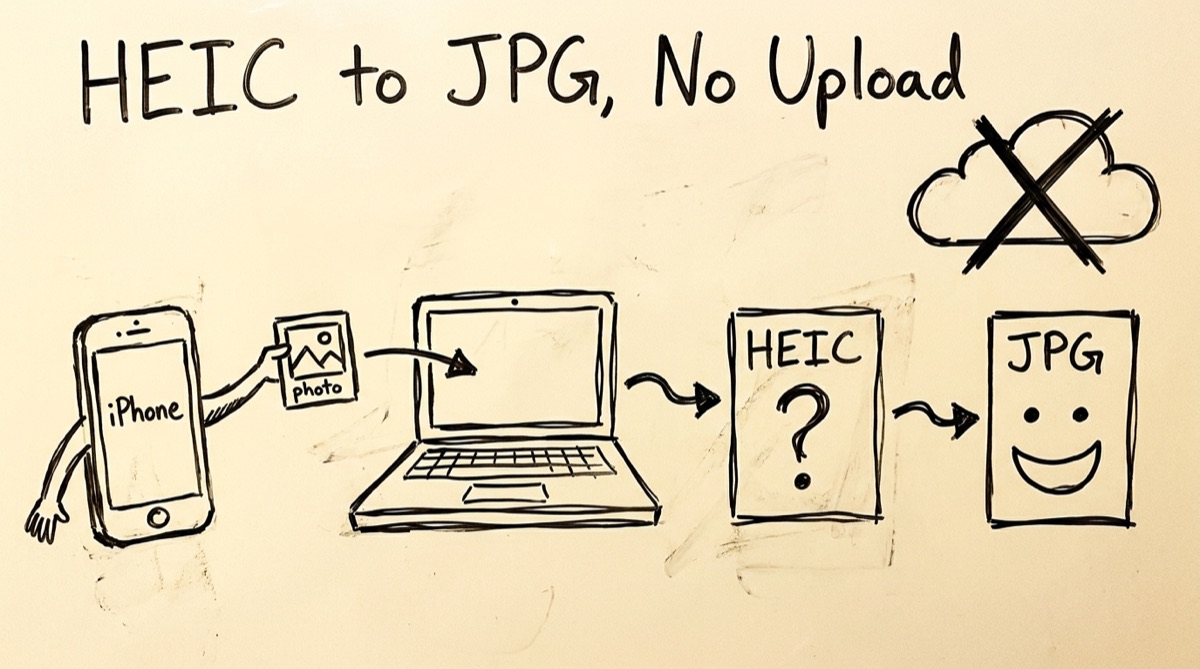
orangebot.ai/tools/heic-to-jpg runs the whole conversion in your browser tab using heic2any, a JavaScript wrapper around a WASM-compiled HEIF decoder. No server round-trip happens — the moment you drop a file, everything runs on your device's CPU. Here's the actual flow:
- Drop your files. Drag one or many
.heic/.heiffiles onto the page, or click to open a file picker (multi-select works). There's no hard file-count cap — we've run batches of 100+ files without the tab choking, though very large batches are ultimately bounded by your browser's memory, not a server-side quota. - Set the JPG quality. A single slider from 1–100% controls JPEG re-encode quality (default 92%). Higher keeps more detail and produces a bigger file; lower shrinks the file more aggressively. 70–90% is the range where most photos look identical to the original at a meaningfully smaller size — most free converters don't expose this control at all and just pick a quality for you.
- Watch the per-file progress. Each file gets its own progress bar and status (converting / done / failed). A failure almost always means the file wasn't actually HEIC/HEIF — a renamed JPEG, for example.
- Download. Click the download icon on a single result, or hit "Download All" to fire off every converted file at once. The original filename is preserved with the extension swapped (
IMG_0421.heic→IMG_0421.jpg).
Because the conversion re-encodes pixels through the browser's canvas rather than copying the original file structure, the output JPG doesn't carry over the source file's EXIF block — no GPS coordinates, no device model, no capture timestamp. That's a side effect of how canvas-based re-encoding works, not a separate "strip metadata" step, but the practical result is the same: if you're about to post a photo somewhere public, the location data that was embedded in the original HEIC isn't along for the ride in the JPG.
You can verify the no-upload claim yourself in under a minute: open /tools/heic-to-jpg, open your browser's DevTools Network panel, turn off Wi-Fi, and try converting a small file. If it still works, nothing left your machine. That's the same test worth running on any tool that claims to be "private" — trust the network panel, not the marketing copy.
HEIC to JPG Converters, Compared Honestly
Most "free HEIC converter" results are server-based, even when the copy doesn't say so plainly. Here's what we found checking the actual claims of the top results for this search:
| Tool | Where conversion runs | Batch | Quality control | Output formats | Catch |
|---|---|---|---|---|---|
| orangebot.ai | Your browser (WASM), verified via the offline test above | Yes, no hard file cap | Yes, 1–100% slider | JPG | Free, no account, no watermark |
| Picflow | Your browser (their own claim) | Yes | Not exposed | JPG + a few others | Ad-free but no quality slider |
| Convertio | Their servers — "processing happens entirely on remote servers" per their own copy | Yes | No | Dozens of formats | 1 GB size cap, signup pushed for more |
| FreeConvert | Their servers — files auto-deleted "after a few hours" | Yes | No | Dozens of formats | 1 GB free cap, paid tiers beyond that |
| HEIC.online | Their servers — files "automatically deleted from our server in one hour" | Yes, up to 100 files | No | JPG or PNG | Explicit 1-hour server retention window |
| Adobe Express / Canva | Cloud editor (uploaded into their design tool) | One at a time in the free flow | No | JPG | Bundled with a full photo editor, not a quick batch tool |
The pattern: if a tool mentions "delete after X hours," "server," or funnels you into a design editor, your file made a round trip to someone else's infrastructure first. That's a fine trade for a single vacation photo you don't care about. It's a bad trade for a batch of family photos, screenshots with sensitive on-screen text, or anything with location metadata you'd rather not hand to a third party you can't audit.
FAQ
Is HEIC to JPG conversion lossy?
Yes, in both directions. HEIC itself is a lossy format (HEVC intra-frame compression), and re-encoding to JPEG is a second lossy pass. At quality 85%+ the difference is not visible to the eye on a typical photo, but if you need pixel-perfect preservation, keep the original HEIC as your archive copy and treat the JPG as a compatibility copy.
Will I lose my Live Photo's motion when I convert?
Yes. JPG has no mechanism for an attached video clip, so any HEIC→JPG converter — including this one — keeps only the still frame. If the motion matters, export the Live Photo as a video separately from the Photos app before converting the still.
Does converting to JPG remove the location data from my photo?
Yes, as a side effect of the conversion. Canvas-based re-encoding (what powers this tool) redraws the pixels and produces a new file — it doesn't copy over the original EXIF block, so GPS coordinates, device model, and capture timestamp aren't present in the output. If privacy is the reason you're converting a photo before sharing it publicly, this works in your favor.
Why does my iPhone photo look fine on my Mac but not on my Windows PC?
Because macOS and iOS both decode HEIC natively — Windows doesn't, unless you've paid for Microsoft's HEVC extension pack. The photo isn't corrupted; the receiving device just doesn't have a decoder for it. Converting to JPG sidesteps the whole issue since every OS, browser, and app has decoded JPEG since 1992.
Can I convert HEIC to JPG on my phone, not just a computer?
Yes — orangebot.ai/tools/heic-to-jpg works in iOS Safari (14+) and Android Chrome, since it's just a web page doing the work locally. No app install needed.
What if my "HEIC" file won't convert?
The most common cause is a file that isn't actually HEIC despite the extension — some Android apps and screenshot tools mislabel files. Open it in an image viewer first to confirm it renders; if it's genuinely corrupted, no converter (ours or otherwise) will fix that.
For the broader question of which image format to use once you're past HEIC, see PNG vs JPG vs WebP vs AVIF. If your converted JPGs are still too large for email or upload limits, how to resize images without losing quality covers the next step. And for the rest of orangebot's client-side toolkit — PDF compression, color picking, and more — see orangebot.ai/tools.