Every "best image format" article on page one of Google says the same thing: "it depends." True, but useless. You have a folder of screenshots, a batch of product photos, or a hero image that's tanking your Lighthouse score, and you need to pick a format in the next five minutes. This guide gives you the actual mechanics — what's lossy, what keeps transparency, what your visitors' browsers can even decode — plus a decision table and a real walkthrough for converting between formats without uploading anything.
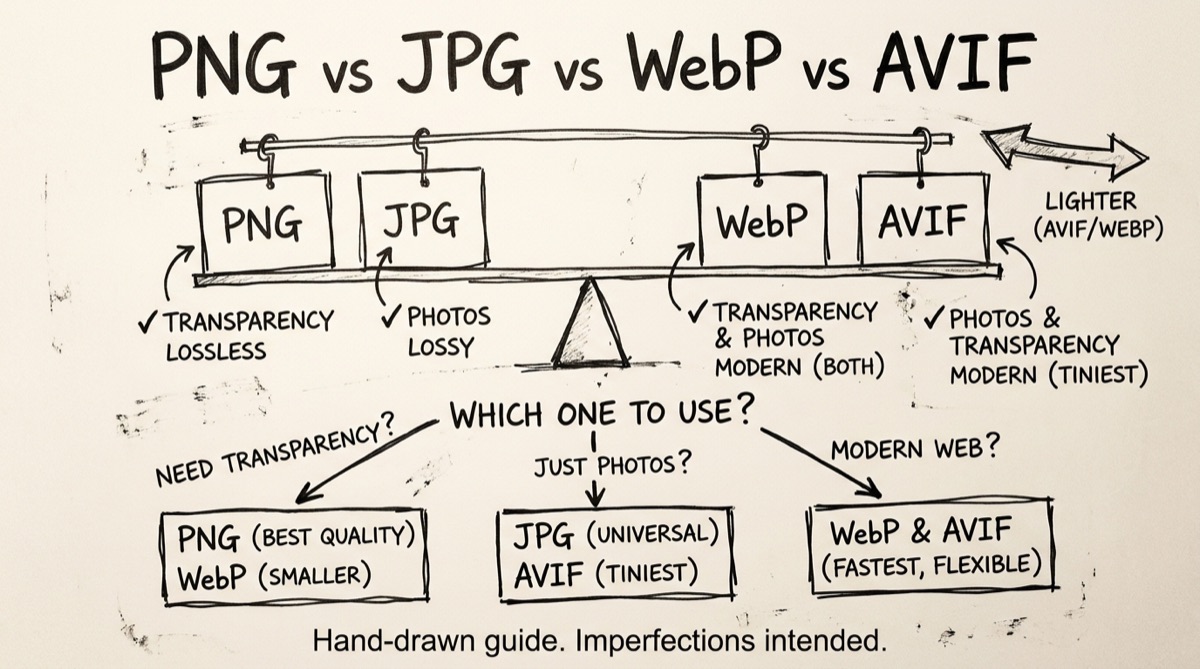
How Each Format Actually Works
PNG (Portable Network Graphics) is lossless — every pixel you save is the pixel you get back. That's why PNG is the default for screenshots, UI mockups, and anything with sharp text or hard edges: there's no compression artifacting to blur a 1px border. PNG also supports a full 8-bit alpha channel, so transparency (a logo on any background, a rounded-corner icon) works perfectly. The cost is file size — PNG's DEFLATE compression is decades old and doesn't touch modern codecs. A 4K screenshot can easily run 3–5x larger as PNG than the same image as WebP.
JPG (JPEG) is lossy — it throws away information you (mostly) won't notice, using a discrete cosine transform that compresses smooth color gradients aggressively. It's the oldest format here (1992) and the most universally supported: every browser, every OS, every email client, every printer driver understands JPEG. Its weaknesses are well known — no transparency, visible blocking artifacts at low quality, and it degrades every time you re-save it (generation loss). Still the safest default when compatibility trumps everything else.
WebP, developed by Google and built on the VP8 video codec, supports both lossy and lossless modes plus a proper alpha channel — so it can replace PNG and JPEG. At equivalent visual quality, WebP files typically run 25–35% smaller than JPEG. Browser support has been universal (Chrome, Firefox, Safari, Edge) for several years now, which is why WebP has become the default recommendation for web images in 2026.
AVIF (AV1 Image File Format) is the newest of the four, built on the AV1 video codec. It compresses even harder than WebP — commonly cited figures put AVIF around 50% smaller than JPEG at similar visual quality, versus WebP's 25–35%. It supports lossy and lossless modes, alpha transparency, wide color gamut, and even HDR. The catch: encoding is slower (meaningful if you're batch-processing thousands of images server-side), and it doesn't support progressive rendering — the whole file has to download before anything displays. Browser support is now solid across Chrome, Edge, Firefox, and Safari, but it's the youngest format here, so if you're targeting older devices or niche browsers, keep a fallback.
Which Format Should You Use?
| Use case | Best format | Why |
|---|---|---|
| Screenshots, UI mockups, sharp text | PNG | Lossless, no artifacting on hard edges |
| Logo or icon with transparency, max compatibility | PNG | Universal alpha support, no codec gaps |
| Email attachments, printing, old software | JPG | Every tool on earth reads JPEG |
| General web photos (safe default) | WebP | 25–35% smaller than JPEG, near-universal support |
| Hero images, product galleries, high-traffic pages | AVIF | Smallest files where every byte compounds across traffic |
| Photo you'll re-edit repeatedly | PNG (or a RAW/TIFF workflow) | Avoids generation loss from repeated lossy re-saves |
| Animated graphics | WebP | Animation support with far better compression than GIF |
If you only remember one rule: PNG for pixel-perfect graphics and transparency you can't compromise on, JPG when compatibility is non-negotiable, WebP as your everyday web default, AVIF when you're optimizing hard for page weight.
How to Convert Between Formats (No Upload)
Most online converters — the ones that dominate the search results for "image converter" — work by uploading your file to their server, converting it there, and sending it back. For product photos or public marketing images that's harmless. For screenshots with customer data, unreleased UI, or anything under an NDA, it's a needless risk: you don't know how long the file sits on their server or who else can reach it.
orangebot.ai's Image Converter does the conversion inside your browser using the Canvas API — the file is decoded, redrawn, and re-encoded entirely on your machine, and nothing is transmitted anywhere. It converts between JPG, PNG, WebP, and BMP:
- Drop your images. Drag one file or a whole batch onto the image converter page, or click to browse. Any format your browser can display works as input.
- Pick the target format. JPG, PNG, WebP, or BMP. PNG and BMP are lossless — the quality slider only applies to JPG and WebP.
- Set quality (for JPG/WebP). 80–90% is the sweet spot for photos: visually indistinguishable from the source at a fraction of the size. Drop lower only if you're chasing a hard size cap.
- Convert and download. Each file converts individually; grab them one at a time or hit Download All to pull the whole batch.
Because conversion happens through canvas re-encoding, EXIF metadata (camera model, GPS coordinates, timestamps) is stripped automatically as a side effect — the canvas only ever sees pixel data, never the original file's metadata block. That's a meaningful privacy bonus if you're posting photos publicly and don't want location data attached.
One honest limitation worth flagging: the tool doesn't currently encode to AVIF. Browser support for canvas.toBlob('image/avif') is still inconsistent across engines, so orangebot's converter focuses on the four formats every browser reliably encodes — JPG, PNG, WebP, and BMP. If you specifically need an AVIF output file, see the alternatives below.
If you're working with iPhone photos specifically, HEIC needs its own decode path — see converting HEIC to JPG without uploading for that workflow.
Other Converters Worth Knowing
Squoosh (squoosh.app), Google's own open-source image tool, is also fully client-side and does encode to AVIF, alongside WebP, JPEG XL, and more — with per-image quality sliders and a side-by-side before/after preview. It's the right tool when you need to hand-tune a single hero image and actually need AVIF output. It doesn't batch-process a folder the way orangebot's converter does.
CloudConvert and Convertio support the widest range of formats, including AVIF and RAW camera formats, and handle very large batches — but both upload your files to their servers, same as most "image converter" search results. Fine for public assets, not for anything sensitive.
ImageMagick (magick input.png output.avif from the CLI) is the right call if you're scripting a recurring conversion job — a build pipeline, a CMS ingestion step, a cron job that re-encodes a folder nightly. It supports AVIF, WebP, and essentially every format that matters, entirely offline, with no per-file manual step.
Desktop apps (Photoshop, Affinity Photo, GIMP) handle format conversion as an "export as" step and are the right choice if you're already editing the image and just need to save it differently — but they're overkill if all you need is a quick batch conversion.
The pattern is the same as with PDF tools: public, disposable images → any online converter is fine. Private or sensitive images, or anything you do repeatedly → client-side browser tool or a local CLI script, not a server upload.
FAQ
Is WebP actually better than JPEG?
For web use, yes. WebP produces smaller files at equivalent visual quality and adds transparency support JPEG never had. JPEG's advantage is pure compatibility — email clients, older software, and some CMSes still expect it. If you're publishing to the open web, WebP (or AVIF) with a JPEG fallback is the standard 2026 approach.
Should I convert my whole PNG image library to WebP?
For photos and complex images, usually yes — you'll save significant space with no visible quality loss at 80–90% WebP quality. For screenshots with sharp text or line art, test first: WebP's lossy mode can slightly soften hard edges that PNG preserves perfectly. Use WebP's lossless mode for those instead of switching to JPG.
Does converting from PNG to JPG lose quality permanently?
Yes. JPEG's lossy compression discards data every time you encode, and that loss is permanent and cumulative if you keep re-saving as JPEG. Always keep a lossless master (PNG, or your original file) and generate JPG/WebP/AVIF copies from that master rather than repeatedly re-compressing an already-lossy file.
Why doesn't orangebot's image converter support AVIF?
Browser-side AVIF encoding via the Canvas API isn't consistently supported across Chrome, Firefox, and Safari yet, even though all three can decode AVIF fine. Rather than ship an output format that silently fails in some browsers, the tool sticks to JPG, PNG, WebP, and BMP, which every browser encodes reliably. For AVIF specifically, Squoosh or a CLI tool like ImageMagick will get you there.
Can I convert multiple images at once?
Yes — drop as many files as you want onto the image converter and each one converts independently in your browser. There's no per-file upload queue or server wait; conversion speed depends only on your device.
Is there a file size limit?
No hard limit is enforced by the tool, but since everything runs in browser memory, very large batches (dozens of high-resolution photos at once) will be limited by your device's available RAM rather than any artificial cap.
For the broader question of when a free browser tool is enough versus when to pay for a CDN-backed image service, see free vs. paid image compressors. And for the full set of privacy-first browser utilities — image, PDF, video, and more — browse orangebot.ai/tools.