You write a README in five minutes, push it, and open the repo page expecting a clean table and a checklist. Instead you get a wall of pipe characters and literal [ ] brackets. Markdown looks like plain text right up until the moment a renderer disagrees with what you assumed it would do — and by then it's already public.
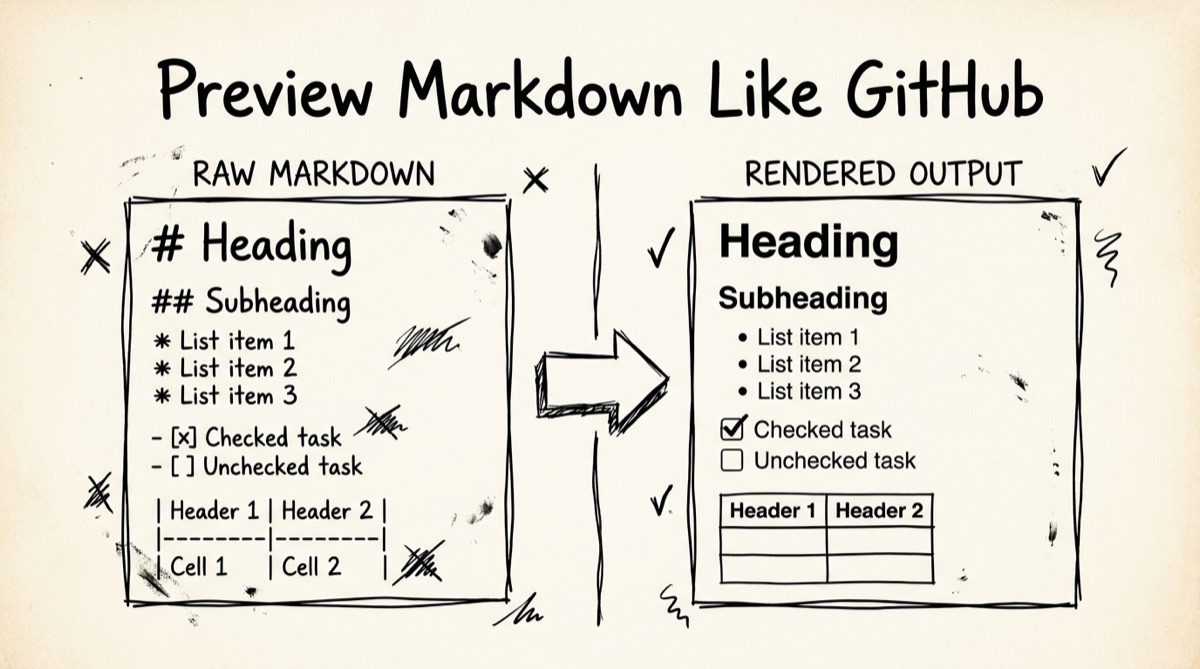
This guide covers where CommonMark and GitHub Flavored Markdown actually diverge, why previewing in GitHub-like typography matters specifically for READMEs, and how to use orangebot.ai's Markdown Preview tool to catch these bugs before they're live.
CommonMark vs GitHub Flavored Markdown: the differences that actually bite
CommonMark is the base spec — a strict, unambiguous grammar for the Markdown most parsers agree on. GitHub Flavored Markdown (GFM) is CommonMark plus a handful of extensions that GitHub.com actually renders. If you learned Markdown from a random blog post or an old parser, you've probably been bitten by at least one of these:
- Tables don't exist in plain CommonMark. A pipe-delimited grid like
| Feature | Status |is a GFM extension. Feed it to a strict CommonMark renderer and you get a literal paragraph of pipe characters — no columns, no borders. This is the single most common "why does my README look broken" bug. - Task lists are GFM-only.
- [ ] todoand- [x] donerender as interactive-looking checkboxes on GitHub. Under plain CommonMark, that's just a bullet list item whose text happens to start with[ ]. If your renderer doesn't implement GFM, your checklist reads as literal bracket text. - Strikethrough (
~~text~~) isn't in CommonMark at all. It's a GFM addition. Some minimal previewers skip it, and the tildes just sit there unrendered. - Autolinks behave differently. GFM auto-links bare URLs and
www.addresses without angle brackets. Strict CommonMark only auto-links<https://example.com>— a bare URL typed without brackets stays plain, unclickable text. - Line breaks trip up almost everyone. Both CommonMark and GFM treat a single newline inside a paragraph as a soft break — it renders as a space, not a new line. You need two trailing spaces or a backslash for a real line break. Writers who format Markdown like a plain-text email (one sentence per line) get a single run-on paragraph in the output and can't figure out why.
- Raw HTML handling differs by renderer, not just by spec. GitHub.com sanitizes a safe subset of HTML tags. Plenty of browser-side Markdown renderers (orangebot's tool included, which uses
react-markdownwithout a raw-HTML plugin) don't render raw HTML at all — it's dropped or shown as text. If your source mixes in<div>or<img>tags expecting them to render, check your specific target renderer's behavior, not just "Markdown" in the abstract.
None of this is exotic — it's the everyday gap between "I typed Markdown" and "this specific tool renders GFM correctly." The fix isn't memorizing the spec differences; it's previewing in something that implements GFM before you commit.
Why previewing in GitHub-style rendering matters for READMEs
A README's whole job is to be read on GitHub.com (or a GitHub-flavored surface like GitLab or a docs site built on the same conventions). If your preview tool renders a different Markdown dialect than GitHub does, you're checking your work against the wrong target — you can "pass" your own preview and still ship a broken table.
This is why a GFM-aware preview matters more than a generic one: it needs to handle the same table syntax, the same task-list checkboxes, the same strikethrough and autolink rules GitHub actually uses, laid out in real typography — headings that look like headings, tables with visible borders, code fences as distinct blocks, blockquotes with a left rule — instead of a raw HTML dump. That's the difference between "technically rendered" and "looks like the actual README people will read." Catching a mis-nested list or an uneven table (one row with 4 columns, the next with 3) in a preview pane costs you ten seconds. Catching it after git push costs you a commit, a force-push or a fixup, and however long the broken page sat live.
How to preview a Markdown file with orangebot.ai
- Open orangebot.ai/tools/markdown-preview. No account, no signup — the editor loads with a sample document you can clear or overwrite.
- Get your content into the left pane. Type directly, paste from anywhere, or drag a
.md/.markdownfile straight onto the page (there's also an upload button in the toolbar if you'd rather click). - Watch the right pane update as you type. Tables, task lists, strikethrough, and autolinks render through GitHub Flavored Markdown (
remark-gfm); inline math ($E = mc^2$) and display math ($$...$$) render through KaTeX. This is a good moment to scan for the failure modes above — an unrendered table, a checklist that's still showing brackets, a paragraph that collapsed because of single newlines. - Use the toolbar for quick edits. Bold, italic, heading, link, image, inline code, bullet and numbered lists, and blockquote buttons wrap your current selection (or insert a placeholder if nothing's selected) — faster than typing the syntax by hand for a quick fix.
- Ship it out. Copy the rendered HTML straight to your clipboard, download it as a standalone
.htmlfile with the styling embedded, or click the share icon to copy a link that encodes your entire document into the URL itself — reopening that link restores the exact text, with nothing stored on a server.
The AI-era angle: LLMs write Markdown constantly, check it before you paste
If you use Claude, ChatGPT, or Gemini for commit messages, README drafts, or PR descriptions, you're getting Markdown back multiple times a day — and pasting it directly into a text field that may or may not render GFM the way GitHub does. Two failure patterns show up constantly:
- The target surface doesn't render Markdown at all. Paste
**bold**into a plain-text field and you ship literal asterisks. This happens more than you'd think with Slack messages, ticket descriptions, and some CMS text boxes. - The model's table is malformed. LLMs occasionally emit a table where the header row has one column count and a body row has another, or the alignment-separator row (
|---|---|) is missing a cell. GitHub's renderer is fairly forgiving, but a mismatch is still visually obvious the moment you preview it — and invisible if you just skim the raw text.
Pasting AI output into a GFM preview before it goes into a real README, PR, or doc costs seconds and catches both problems immediately, visually, before they're committed. It's also useful if you're converting AI-generated Markdown notes into a shareable doc — for math-heavy output specifically, see rendering LaTeX online with KaTeX; for turning a Markdown draft into something you paste into Google Docs, see converting Markdown to Google Docs.
Honest comparison: how orangebot's tool stacks up
There are several solid Markdown live-preview tools already out there, and it's worth being direct about what each one actually offers rather than pretending they don't exist:
- Dillinger is the closest feature match: a Monaco-powered editor (the same engine behind VS Code), vim/emacs keybindings, zen mode, and drafts that persist in local storage. Its standout feature — cloud sync to GitHub, Dropbox, Google Drive, OneDrive, Bitbucket — is also the thing that nudges you toward connecting an account if you want to save anywhere beyond your own browser.
- StackEdit goes further: synced scrollbars between editor and preview, UML/flowchart diagrams, even ABC music notation, plus cloud sync and collaborative editing. It's a genuinely powerful writing app — but it's built around that cloud-sync workflow, which is more than you want for a quick "does this table render" check.
- markdownlivepreview.com is minimal and does exactly what its name says — live preview, nothing else. No math, no export options, no toolbar.
- editor.md is an older open-source, self-hostable editor (last tagged release 2015) with flowchart/sequence-diagram support baked in, aimed at developers who want to embed it in their own app rather than use it as a hosted tool.
Where orangebot's tool fits: it needs no account and nothing is uploaded — rendering happens entirely in your browser (you can verify this yourself: open DevTools' Network tab, disconnect Wi-Fi, keep typing — no requests fire). KaTeX math and GFM tables/task lists/strikethrough/autolinks work out of the box, and instead of cloud-account sync it gives you a shareable link that compresses your document straight into the URL — no server storage, no account, and the link still works if the site's backend is ever down.
It's also fair to say what it doesn't do. There's no Mermaid or flowchart rendering — if diagrams-in-Markdown are core to your workflow, StackEdit or editor.md are the better fit. There's no autosave to local storage either; if you want to preserve a draft across browser sessions, use the share-link button rather than assuming the tab will remember your text. And code fences render as clean monospaced blocks without per-token syntax coloring — good enough to read a snippet, not a substitute for an IDE. If your job is "quickly check that this README, this AI output, or this GFM snippet renders the way GitHub will render it, without creating an account," this tool is built for exactly that. For a heavier, diagram-and-sync-heavy writing workflow, reach for StackEdit instead. The rest of orangebot's browser-only tools — PDF, image, video, and audio utilities that also never upload your files — are listed at orangebot.ai/tools.
FAQ
Does this tool actually render GitHub Flavored Markdown, or just basic Markdown?
It renders GFM specifically, via remark-gfm: pipe tables, - [ ] / - [x] task lists, ~~strikethrough~~, and bare-URL autolinks all work, not just the CommonMark base syntax.
Can it preview LaTeX math?
Yes. Inline math with $E = mc^2$ and display math with $$...$$ render through KaTeX in the preview pane — no separate plugin or setup needed.
Does it support Mermaid diagrams or flowcharts?
No, not currently. If diagrams-in-Markdown are a regular part of your workflow, StackEdit or editor.md support them natively.
Will my draft still be there if I close the tab?
Not automatically — there's no local-storage autosave. Use the share-link button (the link icon in the toolbar) before closing; it compresses your document into the URL itself, so reopening that exact link restores your text.
Is my Markdown file uploaded anywhere?
No. Parsing and rendering both happen client-side in your browser. You can verify this yourself: open your browser's DevTools Network tab, disconnect from Wi-Fi, and keep typing or drop a file in — no network requests will fire.
Can I get the rendered output as HTML, or do I have to copy from the preview manually?
Both options exist. The "Copy" toolbar button copies the rendered HTML to your clipboard, and the "Download" button saves a standalone .html file with the styling embedded, ready to open in any browser or attach to an email.