It's 2 a.m., the API is returning something wrong, and the response body in your terminal is one 4,000-character line with no whitespace. You can see there's a null in there somewhere. You cannot see where. This is the exact moment every JSON formatter tool exists to fix — and the exact moment most people paste a raw API response, complete with an Authorization header value or a customer's email address, into a random website they've never used before.
What a JSON workflow actually needs
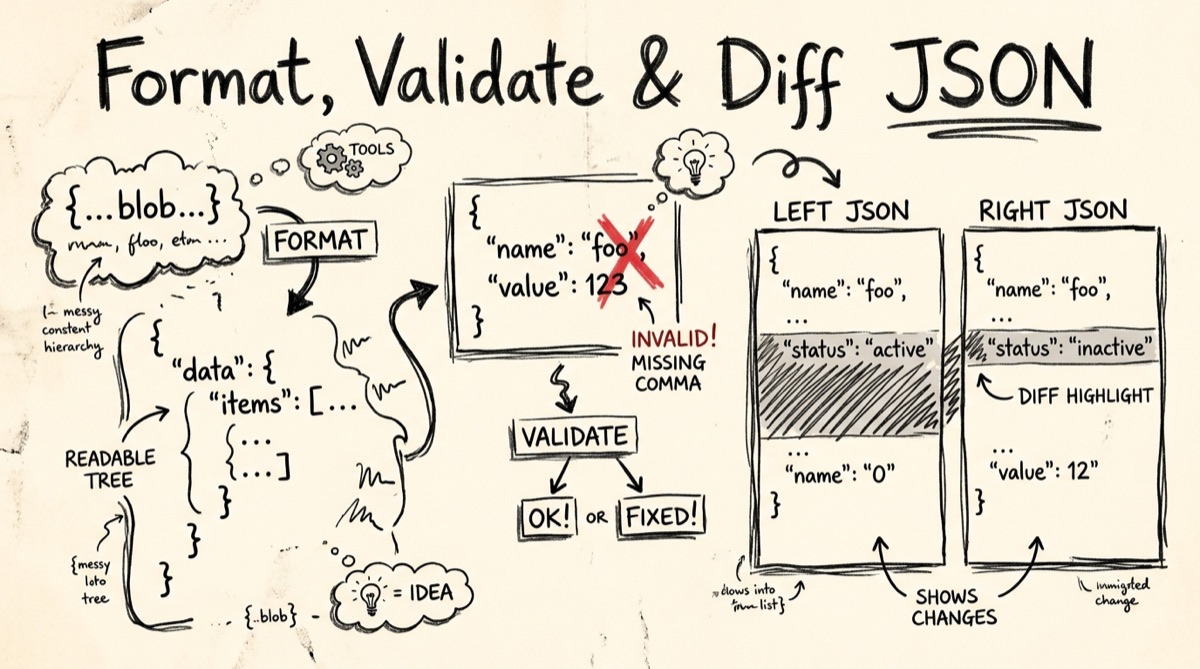
"JSON formatter" undersells what people actually reach for one to do. In practice it's four separate jobs that all show up in the same debugging session:
- Format (pretty-print). Take a minified or inconsistently-indented blob and lay it out with real indentation so nesting is visible at a glance.
- Validate, with a location. Tell you not just that the JSON is broken, but where — which line, which column, which character. "Invalid JSON" with no position is close to useless on a payload longer than a tweet.
- Minify. The inverse of formatting: strip whitespace back out before you paste JSON into an environment variable, a
curl -d, or a config field that doesn't like newlines. - Compare two payloads. The response before your change vs. after. The staging config vs. production. Two versions of the same webhook body that are supposed to be identical and apparently aren't.
Most tools nail the first two and treat the second two as afterthoughts. That's also true of orangebot.ai/tools/json-formatter as it exists today — it handles format, validate, and minify well, but it doesn't yet have a dedicated side-by-side diff view. More on covering that gap below.
The sensitive-data problem with upload-based formatters
Here's what almost never gets mentioned in "best JSON formatter" roundups: most of them are servers. When you paste JSON into the box and click "Format," that text is usually submitted to a backend, processed, and sent back. Some tools even advertise a "load from URL" feature, which means their server fetches your authenticated API endpoint on your behalf.
Think about what actually lives in the JSON you format on a normal day:
- API responses with
Authorization, session cookies, or API keys embedded in headers you copy-pasted along with the body. - User records with names, emails, addresses — anything from a support ticket or a database export.
- Internal config with database connection strings, internal hostnames, feature-flag values that reveal unreleased features.
- Webhook payloads from Stripe, GitHub, or your auth provider — often containing tokens that are valid until you rotate them.
None of that is meant to leave your machine. But if the formatter is server-side, it does — over the network, to infrastructure you don't control, logged in ways you can't verify, "usually" deleted per a privacy policy you didn't read. For a throwaway example object, that's a non-issue. For a real API response at 2 a.m., it's the same category of mistake as pasting a password into a chat window.
The fix: use a formatter that runs entirely in the JavaScript already loaded in your browser tab. You can verify this in about 30 seconds — open DevTools' Network panel, turn off Wi-Fi, and try formatting something. If it still works, it's genuinely local; if it errors out, you were uploading the whole time. We ran this check on orangebot.ai/tools/json-formatter — JSON.parse and JSON.stringify are native browser APIs, so there's nothing to phone home to in the first place.
How to format and validate JSON with orangebot's tool
- Paste or drop your JSON. Paste into the input box, or drag a
.jsonfile straight onto it — both are wired to the same handler. - Pick an indent style. 2 spaces, 4 spaces, or tabs. 2 spaces is the default most style guides converge on.
- Click Format / Prettify. The tool runs
JSON.parseon your input and re-serializes it withJSON.stringify(parsed, null, indent). Valid JSON gets a syntax-highlighted output pane — keys, strings, numbers, booleans, andnulleach get their own color, which makes scanning a large object faster than reading undifferentiated text. - Read the error if it's invalid. Modern browsers' native
JSON.parseerrors report the exact position and, in most cases, line and column, e.g.Expected ',' or '}' after property value in JSON at position 7 (line 2 column 1). Usually enough to jump straight to the offending character. - Switch to Minify for compact output. Same parse step, serialized with no whitespace — what you want before pasting JSON into a
curlcommand, an env var, or a field that chokes on newlines. - Copy or clear. Copy grabs the output to your clipboard; Clear wipes both panes. Character and line counts are shown for input and output as a quick sanity check that nothing got truncated.
None of this leaves the tab, so it also works with your Wi-Fi off.
Comparing two JSON payloads (the diff problem)
This is the workflow step orangebot's formatter doesn't have a built-in view for yet, so here are the honest options:
Quick visual diff, payload not sensitive: CodeBeautify's JSON Diff or JSON Editor Online's compare view both do line-by-line, color-coded comparison and handle key reordering reasonably well.
Payload is sensitive, still need a diff: format both sides locally (orangebot's tool, or jq) with the same indent settings, then diff the two text files with your editor's compare view or diff -u a.json b.json. Formatting both sides identically first matters more than the diff tool — most "JSON looks different but isn't" cases are just key ordering or indent width, not real content changes.
Want to ignore key order entirely: that's jq -S (sort keys) piped into diff, covered next.
Sidebar: doing this from the terminal with jq
If you live in a shell more than a browser tab, jq covers the same four jobs without ever opening a page:
# Format (pretty-print)
jq . response.json

# Minify
jq -c . response.json

# Validate only — exits non-zero and prints an error on invalid JSON
jq empty response.json && echo "valid"

# Diff two payloads, ignoring key order
diff <(jq -S . before.json) <(jq -S . after.json)
The -S flag sorts object keys recursively before output, which is what makes the diff line meaningful — without it, two semantically identical objects with keys in different order show up as a full diff, which is noise, not signal. This is also the fastest way to check "did this API response actually change" in a CI script: pipe both curl outputs through jq -S . and diff the result. For huge files — tens or hundreds of MB — jq is also faster and won't hit the memory limits any in-tab formatter eventually will.
Honest comparison: which JSON tool for which job
| Tool | Runs client-side? | Diff view | Notes |
|---|---|---|---|
| orangebot.ai JSON Formatter | Yes, fully | No (format both sides, diff externally) | Free, no sign-up, drag-and-drop, syntax highlighting, native error line/column |
| JSONLint | No — submitted to server | No | Validation-focused, minimal features, has a Chrome extension for auto-formatting JSON opened in a tab |
| jsonformatter.org | No — submitted to server | No | Adds format conversion (JSON↔XML/CSV/YAML) |
| CodeBeautify | No — submitted to server | Yes, dedicated JSON Diff tool | Broad catalog of bundled converters; ad-heavy page |
| JSON Editor Online | Mixed — free tier is server-processed, paid desktop app is local-only | Yes, tree-based compare | Most feature-complete browser tool: tree view, schema validation, querying |
jq (CLI) | Yes, always local | Via diff <(jq -S .) | No GUI; best for scripts, CI, and files too large for a browser tab |
If your JSON is sensitive and you just need format/validate/minify, orangebot's tool is the one that never sends the payload anywhere. If you need a visual diff today, pair it with a local diff (editor compare view, diff -u, or jq -S piped to diff) rather than a server-side diff tool, unless the payload genuinely doesn't matter if it leaks.
FAQ
Is my JSON uploaded or logged when I use orangebot's formatter?
No. Formatting, validation, and minification all run through the browser's built-in JSON.parse / JSON.stringify, entirely inside the tab. There's no network request involved in any of those three operations — you can confirm this yourself with the Wi-Fi-off test described above.
Why does the error message just say "Unexpected token" with a position number?
That's the raw error JSON.parse throws — the browser engine's own parser talking, not custom messaging from the tool. Modern V8-based browsers include line and column in the message, e.g. (line 2 column 1), usually specific enough to jump straight to the problem.
What's the difference between formatting and validating JSON?
They're the same operation under the hood. JSON.parse either succeeds (valid, and you get a formatted or minified result) or throws (invalid, with a position). There's no separate "validate-only" mode — trying to format is the validation.
Can I diff two JSON files with this tool?
Not with a dedicated side-by-side view yet — that's a genuine gap, not a hidden feature. Workaround: format both payloads with the same indent setting and diff the resulting text with your editor's compare view, diff -u, or jq -S . a.json | diff - <(jq -S . b.json) for key-order-independent comparison.
Does the formatter support JSON5 or JSONC (trailing commas, comments)?
No — it validates standard JSON (RFC 8259) only. Trailing commas, unquoted keys, and /* comments */ all raise a syntax error, which will surprise you if you paste in a VS Code settings.json or tsconfig.json (both use the more permissive JSONC dialect). Strip comments and trailing commas first.
What's the largest JSON I can format in a browser tab?
No hard cutoff, but a few MB pastes and formats instantly. Past roughly 10 MB, the textarea and syntax highlighter get sluggish since the whole string is manipulated in memory and re-rendered. For genuinely large files, jq on the command line handles them without the browser tab's memory ceiling.
For the wider set of privacy-first browser tools — image, video, audio, and text utilities that skip the upload step entirely — see AI tools for developers in 2026, how Base64 encoding actually works, or browse the full list at orangebot.ai/tools.