You just fixed a flaky animation bug. The PR description needs a 3-second before/after loop, not a paragraph nobody will read. You screen-record it, drop the MP4 into the first "video to gif" result Google gives you, and thirty seconds later you have a GIF — with a translucent logo stamped across the bottom corner, because "free" meant free until you wanted the watermark gone.
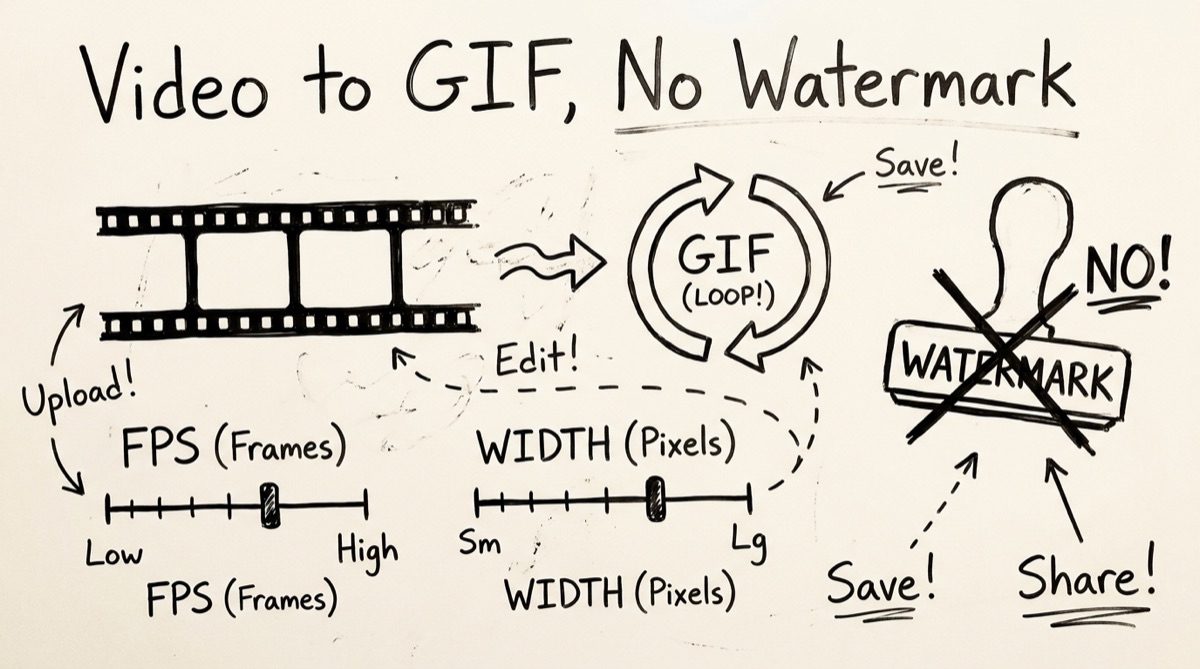
This guide covers what actually makes GIFs bloated, the fps/width/duration trade-off that keeps them small, when a GIF is the wrong format entirely, and how to convert without uploading anything.
Why GIFs Are Huge: Palette and Frame Encoding
GIF is a 1987 format built around indexed color: every frame draws its pixels from a palette of at most 256 colors, not the millions your video actually contains. That constraint is the root of almost every GIF quality and size problem.
A naive converter picks a generic palette (or the first frame's palette) and applies it to the whole clip, which produces the banded, muddy GIFs you've seen out of quick-and-dirty tools. A better pipeline runs two passes:
palettegen— scans the clip and computes an optimal 256-color palette for that specific video, weighting colors by how much screen area they cover.paletteuse— re-encodes every frame against that palette, using dithering (error diffusion) to approximate colors that didn't make the cut instead of hard-banding them.
This two-pass palette approach is the standard ffmpeg filter chain (fps=…,scale=…,split[s0][s1];[s0]palettegen[p];[s1][p]paletteuse), and it's what runs under the hood on orangebot's Video to GIF tool — the same technique server-side converters and desktop apps use, just executed locally.
The other half of the size problem is frame encoding. MP4 (H.264/H.265) is interframe: it stores a full keyframe occasionally and cheap deltas for everything in between, so a mostly-static screen recording compresses aggressively. GIF's LZW compression works on the indexed pixel data of each frame more or less independently — there's no motion prediction. That's why GIF file size scales close to linearly with frame count and resolution instead of leveling off the way video does. A 10-second GIF isn't roughly the same size as a 3-second one with a bit more data tacked on; it's often 3x the size.
The FPS / Width / Duration Triangle
Because GIF size scales with frame count × pixel count × duration, three sliders control the output, and pushing one up means pulling another down if you want a shareable file:
- Duration is the biggest lever. Trimming a clip from 10 seconds to 4 seconds cuts size more than any fps or width change alone — you're removing frames wholesale, not just shrinking each one. If your GIF is too big, trim before you touch anything else.
- FPS controls smoothness vs. frame count. 24fps looks buttery but doubles the frame count (and roughly the file size) compared to 12fps for the same clip. 10–15fps is the de facto GIF standard because short reaction loops and UI demos read as smooth well below video frame rates — your eye doesn't need 24fps to register "the button turned green."
- Width controls pixel count per frame, and it compounds. Halving width from 960px to 480px cuts total pixels to a quarter, and because the palette also has less detail to encode per frame, the size drop is often steeper than the pixel math alone suggests.
The practical recipe, and the defaults orangebot's tool opens with: clips under 5 seconds, width around 480px, 10fps. Push width up toward 720–960px only if the GIF is going somewhere users will zoom in (a design comparison), and push fps up toward 20 only for genuinely fast motion where 10fps looks choppy — a fast mouse drag or a rapid UI transition.
GIF vs. MP4 vs. WebP: Pick the Right Format First
Before you convert anything, check whether GIF is even the right target — it's usually the worst format on every axis except one: universal autoplay support.
- GIF: Largest file for the same visual quality, capped at 256 colors, no audio. But it drops into an
<img>tag, a Markdown README, a Slack message, or an email and just plays — no player controls, no click-to-play, no JS. Some places (GitHub PR descriptions, Slack link previews, many CMS "featured animation" fields) specifically expect GIF and won't autoplay a video file the same way. - MP4/WebM: Far smaller at equal quality thanks to interframe compression, true color, and can carry audio. But it needs a
<video>tag and doesn't behave the same as an inline auto-looping image in every context. If your destination is an actual video player — a docs site, a landing page demo — convert and compress the video directly instead of round-tripping through GIF. - Animated WebP: Smaller than GIF at the same visual quality, true color, no 256-color ceiling. The catch is inconsistent support — plenty of chat clients and CMS upload fields still treat an animated WebP as a static image or reject it outright, where a GIF just works.
Rule of thumb: reach for GIF when the destination explicitly wants a GIF or needs old-school inline autoplay with zero JS. Reach for MP4/WebM when file size matters and you control the player. And if what you actually need is a single crisp frame — not a loop — a clean annotated screenshot usually communicates the bug or feature better than a GIF anyone has to watch loop twice to understand.
How to Convert Video to GIF (No Upload)
- Open orangebot.ai/tools/video-to-gif and click "Load FFmpeg Engine." First use downloads the ~31 MB WebAssembly core; it's cached after that, so every conversion after the first is instant to start.
- Drop your video. MP4, MOV, AVI, WebM, and MKV are all accepted — this covers iPhone screen recordings, OBS captures, and most Android exports without a pre-conversion step.
- Trim the clip. Start and end time fields (in seconds) default to the first 10 seconds of the video. Pull the end time in — per the triangle above, this is your biggest size lever.
- Set the width. Drag the slider anywhere from 120px to 1280px; 480px is the default and the right starting point for chat/README use.
- Pick a frame rate. 5, 10, 15, or 20 fps as buttons — 10 is default and the safe choice for most clips.
- Click Convert to GIF. Processing runs entirely in your browser via
ffmpeg.wasm; a progress bar tracks the palette-generation and encoding passes. - Preview and download. The output loops infinitely by default and downloads with the same base filename as your source, swapped to
.gif.
Nothing here touches a server. You can verify it yourself: load the tool, disconnect Wi-Fi, and run a conversion on a short test clip — it still works, because there's nothing to upload.
Honest Comparison: Video-to-GIF Converters
| Tool | Uploads your video? | Watermark on free tier? | Notes |
|---|---|---|---|
| orangebot.ai Video to GIF | No — runs via ffmpeg.wasm in your browser | No | Free, no signup, no server-side file size cap (limited only by your device's RAM) |
| EZGIF | Yes, server-side | No | Old, reliable brand — but your video leaves your device |
| Adobe Express | Yes, server-side | No | Free tier caps video length around 1 minute; nudges toward paid plans for longer clips |
| VEED.io | Yes, server-side | Yes on free plan | Removing the watermark requires a paid subscription |
| Clipchamp | Yes, server-side | Yes without an account | Free watermark-free export requires signing in |
| Giphy | Yes, server-side | No | Requires a free account or Facebook login to create |
| Convertio / FreeConvert | Yes, server-side | No | Free with file-size caps; files reportedly deleted "after a few hours," which you can't verify |
| Kommodo.ai | No — also ffmpeg.wasm, client-side | No | Closest architecture to orangebot's tool; uses fixed quality presets (720p/540p/480p) and adds WebP export instead of a continuous width slider |
If privacy and cost are both non-negotiable, the client-side ffmpeg.wasm tools (orangebot, Kommodo) are the only category here that doesn't ask you to trust a third-party server with your file — worth remembering if the clip is an unreleased feature, an internal demo, or anything under an NDA. The rest of orangebot's free browser tools follow the same no-upload approach for images, PDFs, and other conversions.
FAQ
Is this really free with no watermark, no catch?
Yes. The tool has no paid tier, no account requirement, and no watermark logic — there's nothing to unlock. It's a static page running ffmpeg.wasm in your browser; there's no server-side account system to gate features behind.
Do my videos get uploaded anywhere?
No. Conversion runs entirely client-side via WebAssembly. You can confirm this yourself by turning off your network connection after the FFmpeg engine loads and running a conversion — it still works.
Why is my GIF still huge after converting?
Check duration first — a 10-second clip at any settings will outsize a 3-second one dramatically. Then drop width toward 480px or lower and fps to 10. GIF has no modern compression tricks to fall back on; trimming, scaling, and lowering fps are the only real levers.
What's the maximum video length or file size I can convert?
There's no hard cap enforced by the tool — it's limited by your device's available memory, since ffmpeg.wasm processes the file in the browser's WebAssembly heap. Clips under 30 seconds at 480p convert comfortably on most modern laptops and phones; longer clips at higher width may need a beefier device.
Will the GIF loop automatically wherever I paste it?
Yes. Output GIFs are encoded with infinite loop by default, which is what every chat app, README, and social platform expects from a GIF.
Does it handle iPhone MOV screen recordings?
Yes, directly — no pre-conversion needed. MOV is one of the accepted input formats alongside MP4, AVI, WebM, and MKV, since the underlying engine is full ffmpeg compiled to WebAssembly, not a narrow single-format decoder.