You need thirty seconds of clean speech: a voice note to feed into Whisper, a scratch VO take for a video draft, a pronunciation sample for a TTS model, or just a quick memo before you forget the idea. You open a "free online voice recorder," and now you're deciding between six ad-heavy sites, none of which tell you what sample rate they're recording at or where the file goes after you hit stop.
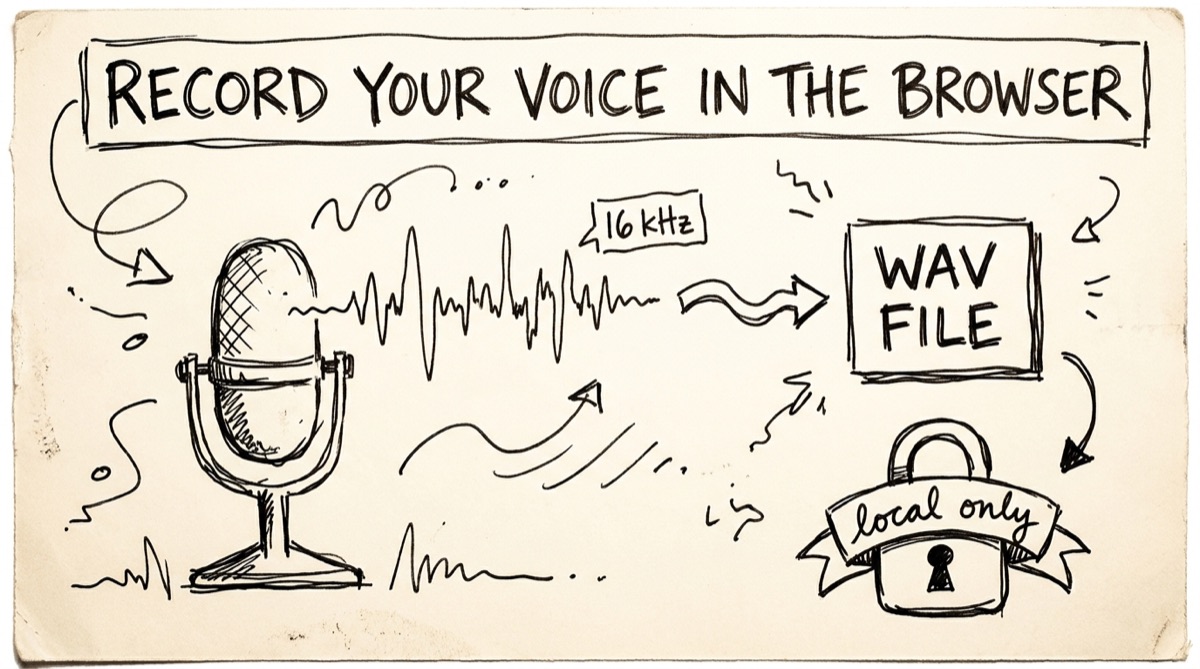
This guide covers what actually determines whether a browser recording is usable downstream — sample rate, format, and where the audio physically goes — then walks through orangebot.ai/tools/voice-recorder, which is built around those constraints instead of ignoring them.
Why Sample Rate Matters (16 kHz vs. 24 kHz vs. WAV vs. WebM/MP3)
Every recorder captures at some sample rate and encodes to some format. Both choices matter more than people assume, and most free recorders make the choice for you silently.
Sample rate determines the highest frequency your recording can represent (Nyquist: half the sample rate). Human speech intelligibility lives mostly in the 300 Hz–3.4 kHz range — the band telephones have used for a century. That's why:
- 16 kHz is the standard input rate for speech-to-text models. Whisper, wav2vec2, and most ASR pipelines resample everything to 16 kHz internally before running inference, regardless of what you feed them. Recording at 16 kHz directly means no wasted bits and no resampling step between your mic and the model.
- 24 kHz (or 22.05 kHz) is the common training/output rate for modern TTS and voice-cloning models — VITS, Tortoise, and similar architectures expect this range because it captures enough of the higher harmonics that carry timbre and prosody, which 16 kHz throws away.
- 44.1/48 kHz (CD-quality, video-standard) is overkill for voice alone. It matters for music or when audio needs to sync to 48 kHz video, not for speech clarity.
| Rate | Built for | Why |
|---|---|---|
| 16 kHz | ASR / speech-to-text | Matches what STT models resample to anyway |
| 24 kHz | TTS training, voice cloning | Preserves timbre/prosody detail STT doesn't need |
| 44.1–48 kHz | Music, video sync | Full audible range; unnecessary bulk for voice-only work |
Format matters just as much. Most browsers record natively to WebM/Opus (or MP4/AAC on Safari) via the MediaRecorder API — a lossy, compressed codec, fine for casual playback. WAV, by contrast, is uncompressed 16-bit PCM: no encoding artifacts, nothing for a downstream feature extractor (MFCCs, mel spectrograms) to trip over. If a recording is going into an ASR pipeline, a TTS dataset, or any kind of audio ML work, lossy compression is actively working against you — it's quantization noise sitting between your voice and the model. If it's a voice memo you'll never process, the codec doesn't matter at all.
Mic Permission and the Privacy Model of In-Browser Recording
Browser-based recording works through getUserMedia() — the browser prompts once for microphone access, you grant it, and the permission is remembered per site for next time. From there, everything can happen locally: the audio stream never has to leave the tab.
That's the model. Whether a specific tool actually honors it is a separate question, and it's not one you should take on faith. The same 30-second check we recommend for PDF compressors applies here:
- Open the recorder in a browser tab.
- Open DevTools → Network panel.
- Turn off Wi-Fi.
- Record a few seconds and process it.
- If it still works end-to-end, the tool is genuinely client-side. If it errors out, your mic audio was headed to a server.
orangebot's voice recorder passes that test — recording, waveform rendering, resampling, and WAV encoding all happen via the Web Audio API and MediaRecorder in your tab, with the RIFF/WAV header written by hand in JavaScript rather than shipped off anywhere for conversion. It also requests the mic with echoCancellation, noiseSuppression, and autoGainControl turned on and captures a single (mono) channel by default — standard browser-level DSP that cleans up casual recordings, though if you're doing research work where you want the truly raw signal, know that these are on by default and there's no in-tool toggle to disable them.
How to Record with orangebot's Voice Recorder
- Go to orangebot.ai/tools/voice-recorder. No account, no sign-up.
- (Optional) Fill in the metadata form before you record: scenario (quiet office, café, car…), target (TTS dataset, ASR test, voice memo…), speaker ID, and task type (read-aloud, spontaneous, dialogue, command, voice-memo). Skip this entirely if you just want a quick memo — it's there for anyone building a labeled dataset one take at a time.
- Pick your output sample rate: 16 kHz (labeled "ASR") or 24 kHz (labeled "TTS"). This sets what your downloaded WAV gets converted to; it doesn't change what the mic captures.
- Click Start recording and grant the mic prompt on first use. A live orange waveform shows your input in real time — watch it and keep peaks from pinning to the edges (that's clipping).
- Pause and resume as needed. The same take continues; the elapsed timer accounts for the paused time so your final duration is accurate.
- Click Stop. The tool shows "Converting…" while it decodes your capture, resamples it to mono at your chosen rate through an OfflineAudioContext, and encodes it as 16-bit PCM WAV.
- Download your files: the mono WAV at your chosen rate, the original capture (whatever codec your browser recorded in — typically WebM/Opus), and a
metadata.jsonsidecar with recording time, your form fields, duration, sample rate, and file sizes. - Discard and record again, or start a fresh take with the same metadata pre-filled.
Nothing is uploaded at any point — there's no server round-trip between clicking Start and clicking Download.
Honest Comparison: What Else Is Out There
A search for "online voice recorder free" turns up a crowded field. Here's what they actually offer, based on their own product pages:
- online-voice-recorder.com — free, exports MP3, auto-trims silence at the start/end of your take. Its own help docs still reference Adobe Flash Player for mic-level adjustment, which should give you pause about how current the tooling is. No sample-rate or channel control.
- Rev's online voice recorder — free MP3 download, but it's explicitly a funnel into Rev's paid transcription service. Fine if you want a quick memo and might pay for a transcript; not built for controlling recording parameters.
- Voice.ai — general-purpose recorder attached to a voice-AI/voice-changing product suite, not aimed at raw audio capture for downstream pipelines.
- voice-recorder.io — the closest privacy model to orangebot's: it advertises device-local recording with autosave/restore and exports MP3, WAV, or WebM. It's a solid general-purpose option, but it has no sample-rate selection, no mono-vs-stereo control, and no metadata sidecar — you get a file, not a labeled dataset entry.
- Canva's voice recorder — bundled inside Canva's design suite, requires a Canva account, and is built for narrating videos/designs rather than extracting a standalone audio file.
If you just want a quick MP3 voice memo and don't care about the technical specs, any of these will do the job — voice-recorder.io in particular is a reasonable, privacy-respecting pick. Where orangebot's tool earns its place is the narrower case: you need a mono WAV at a specific ASR/TTS-appropriate sample rate, you want it labeled with scenario/speaker/task metadata as you go, and you don't want to install anything or make an account to get there.
FAQ
Do I need to create an account to record?
No. The recorder works anonymously — no sign-up, no login.
What happens to my recording if I don't download it?
It exists only as in-memory blob URLs in that browser tab. Refresh the page, close the tab, or hit reset and it's gone — nothing is auto-saved to a server or to disk.
Why would I pick 16 kHz or 24 kHz instead of the default 44.1 kHz?
Because your downstream tool will resample to one of those anyway. Feeding Whisper or another ASR model a 44.1 kHz file just means an extra resampling step happens somewhere before inference — recording at 16 kHz mono skips it and keeps your file smaller. Pick 24 kHz if the destination is a TTS or voice-cloning pipeline that wants the extra frequency headroom.
Can I use this for feeding Whisper or another transcription API?
Yes — a mono 16 kHz WAV is exactly the input format most speech-to-text APIs expect or convert to internally, so you're uploading a file that's already in its native shape rather than something that gets re-encoded on their end.
Is there a recording length limit?
It's bounded by browser memory rather than a hard cap. Recordings well past 30 minutes work on most modern laptops; for hour-plus sessions, a desktop recording app will hold up better.
Does it work on mobile?
Yes, on iOS Safari 14+ and Android Chrome. The mic permission prompt appears the same way it does on desktop, on first use.
For more on the format side of audio, see how to extract audio from a Zoom recording and how to compress audio without losing quality. For the rest of orangebot's client-side utilities, browse orangebot.ai/tools.