You're on a locked-down work laptop with no admin rights, or a Chromebook that has never seen a "Compress" context-menu option, and you just need to bundle five files into one attachment before a meeting starts in two minutes. Installing WinRAR is not happening. Neither is waiting for IT to approve it.
This is a genuinely small problem, but it's one that native tools solve inconsistently across operating systems, and most of the "free online zip maker" results you'll click through either upload your files to a server or bury the tool under ads. Here's what actually works, in what order to try it.
How ZIP Compression Actually Works
A ZIP file is a container, not a magic shrink-ray. Internally it uses DEFLATE, an algorithm that scans a file for repeated byte sequences and replaces them with shorter back-references — the same family of technique gzip and PNG use. How much a file shrinks depends entirely on how much repetition is already in it, not on how hard you ask the compressor to try.
That has one very practical consequence: text-like files compress a lot, media files barely compress at all.
- Text, logs, source code, CSVs, uncompressed spreadsheets: heavily repetitive (same characters, whitespace, syntax patterns over and over). These routinely shrink 60–80% in a ZIP.
- JPEGs, MP3s, MP4s, already-zipped files (like
.docx, which is itself a ZIP container): these formats already ran their own compression pass when they were created. There's almost no repetition left for DEFLATE to find. Drop a folder of vacation JPEGs into a ZIP and you'll typically see 1–3% size reduction — sometimes the ZIP comes out larger than the sum of the files, because of per-file archive overhead.
So if your goal is "make this smaller," check what's inside first. If your goal is "bundle several files into one attachment," compression ratio doesn't matter at all — you're using ZIP as a container, not a compressor, and that's a completely legitimate reason to zip a folder of photos even though it won't shrink them.
Native Ways to Zip Files (and When They Fall Short)
Every major OS can create ZIP files without installing anything:
- macOS Finder: select files, right-click → "Compress N Items." Creates
Archive.zipin the same folder. No options, no password, but it's instant and it's already there. - Windows Explorer: select files, right-click → Send to → Compressed (zipped) folder (older UI) or "Compress to ZIP file" in the Windows 11 context menu. Same trade-off — zero configuration, works everywhere Windows works.
- Command line (macOS/Linux):
zip -r archive.zip folder/handles recursion, andzip -e archive.zip file1 file2prompts for a password (weak legacy ZipCrypto — more on that below). Good for scripting a repeated task; overkill for a one-off.
These cover the common case fine. A browser-based tool earns its place in a narrower set of situations:
- You don't have file-system access to right-click anything — a managed Chromebook, a kiosk machine, a tablet, someone else's computer at a library.
- You want to zip files that live in different places — some from a download folder, one pasted from a screenshot tool, one dragged out of an email attachment preview — without first collecting them into one OS folder.
- You're on a phone. iOS and Android both have limited native archive-creation UI; a browser tool sidesteps the App Store entirely.
- The files are sensitive and you specifically want to avoid uploading them anywhere — which native OS tools already satisfy (they never leave your machine), so the only reason to reach for a browser tool in this case is convenience, and only if you've verified it's not secretly uploading anything. That's the next section.
How to Zip Files in Your Browser (No Install, No Upload)
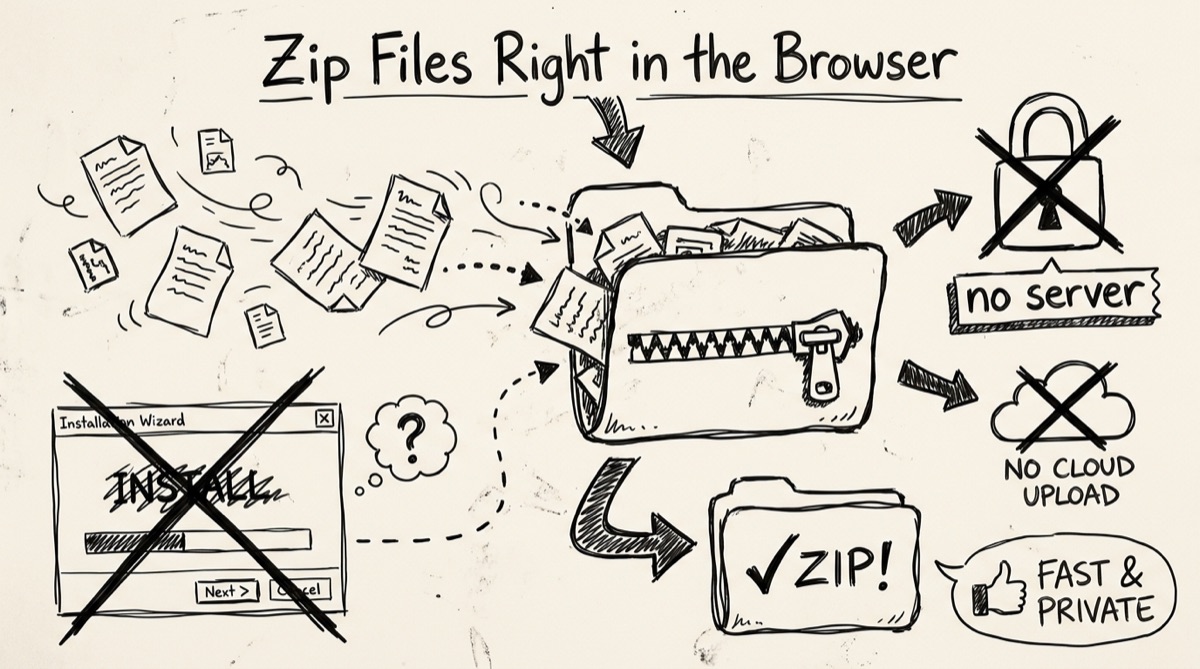
orangebot.ai/tools/zip-creator runs entirely client-side — it loads JSZip in your browser tab and never sends file bytes anywhere. Using it:
- Drop files onto the page, or click to browse. Drag one or several files from Finder/Explorer, or use the file picker for a multi-select dialog. The tool accepts any file type and, practically, as many files as your browser's memory can hold — there's no artificial cap, but a few gigabytes is the realistic ceiling on most laptops before the tab starts to feel sluggish.
- Optionally name a root folder. Type a name in the "Root folder name" field and every file gets wrapped inside that one folder in the resulting archive — useful if you want the unzip step on the other end to land in a tidy subfolder instead of dumping loose files into someone's Downloads.
- Review the file list. Each entry shows its size; remove anything you added by mistake with the trash icon before building the archive.
- Click Create ZIP. Compression runs in the browser using DEFLATE, the same algorithm your OS uses — you'll see a progress bar and, once it's done, the original total size next to the resulting ZIP size and the percentage saved.
- Click Download ZIP. The file downloads directly; nothing was ever transmitted to a server to get there.
Why "no upload" is worth caring about, specifically: if you're bundling a signed contract, a client's financial spreadsheet, or anything with PII into a ZIP before emailing it, running that through a server-side "free zip maker" means that service now has a plaintext copy of your files, however briefly they claim to retain it. Most such sites publish a deletion policy ("removed after 24 hours"), but you're trusting a stranger's server operations, not verifying them. A tool that does the work in your own browser tab removes that trust requirement — the compression math runs on your CPU, using your RAM, and the ZIP blob never crosses the network. You can confirm this yourself: open DevTools → Network tab, turn off Wi-Fi, and try zipping a small file. If it still works, nothing was uploaded.
Online ZIP Creators, Compared Honestly
Not every "free online zip" result behaves the same way. From testing the top results for this exact query:
- Server-upload tools (Devine Tools, CountingCharacters' Zip File Maker, CloudConvert, ilovezip): you select files, they're sent to a server, compressed there, and the resulting ZIP is served back for download. CountingCharacters explicitly states files are auto-deleted after 24 hours — a reasonable policy, but it means your files sat on their infrastructure for up to a day. Fine for a public zip of marketing assets; not something to use for anything confidential.
- Client-side tools with heavier feature sets (Files2zip, ZipMyFile): both genuinely run compression in-browser via WebAssembly-grade JS zip libraries, and both go further than orangebot's tool — they support dropping whole folder trees and preserving nested structure, plus (Files2zip) extracting RAR/7Z/TAR formats too. If you need true folder-tree zipping or archive extraction, these are honest, capable options.
- orangebot.ai/tools/zip-creator: client-side only, no server round-trip, no account, no ads gating the download. It's intentionally narrower than the folder-tree tools above — it zips a flat list of files you drop or select, with an optional single wrapper folder — in exchange for a page that loads fast and does one thing without asking anything of you first.
The honest recommendation: if you need to zip an actual nested folder structure exactly as it sits on disk, reach for Files2zip or your OS's native right-click. If you're bundling a handful of files — the far more common case — and privacy or speed is the priority, orangebot's ZIP Creator does that without a single byte leaving your device.
FAQ
ZIP vs. 7z vs. tar.gz — which should I use?
ZIP is the only one of the three that opens natively on every major OS with zero extra software (Windows, macOS, and most Linux file managers handle it out of the box). 7z (7-Zip's format) compresses text-heavy data somewhat better than ZIP but requires installing 7-Zip or a compatible tool to open on macOS/Windows. tar.gz is the Unix/Linux convention — a tar bundles files uncompressed, then gzip compresses the whole bundle — and it's what you'll see distributing source code or server backups, but it's an awkward double-click for a typical Windows user. For sending a file to someone whose setup you don't control, ZIP remains the safest choice.
Does password protection on a ZIP actually secure it?
It depends entirely on which encryption the tool uses. The original 1989 ZipCrypto scheme (still what the zip -e command-line flag and many old tools use) is considered broken — freely available tools can crack it in minutes regardless of password strength. Modern AES-256 encryption, supported by 7-Zip, WinRAR, and macOS Archive Utility, is genuinely strong. orangebot's ZIP Creator doesn't currently offer built-in password protection — if you need an encrypted archive, use 7-Zip or WinRAR with AES-256 selected explicitly (check the encryption method in the tool's settings; don't assume it defaults to the strong option).
Is there a file size limit?
Not an artificial one. The practical ceiling is your browser tab's available memory — every file gets read into memory before compression, so a few gigabytes total is realistic on a modern laptop before performance degrades. If you're regularly zipping tens of gigabytes, a desktop tool or the command line will handle it more gracefully.
Will zipping my photos or videos actually make them smaller?
Barely. As covered above, JPEGs, MP4s, and MP3s are already compressed by their own formats, so DEFLATE finds almost nothing left to squeeze — expect 1–3% savings at best. Zip a folder of photos to bundle them into one download or attachment, not to save disk space.
Can I zip a whole folder with subfolders using orangebot's tool?
Not with nested structure preserved — it works with a flat list of files you drag or select, plus an optional single root-folder name to wrap them. If you need the exact original directory tree reproduced inside the ZIP, use your OS's native "Compress" option or a tool built specifically for folder-tree zipping, like Files2zip.
Does it work on a phone or Chromebook?
Yes — it's a normal web page using the browser's File API, so it works in Chrome on a Chromebook, mobile Safari, and Android Chrome. The trade-off versus desktop is smaller available memory, so very large batches may be slower or hit a ceiling sooner on a phone.
For more on what actually shrinks when you compress a file — and when uploading to a "free" tool is a bad idea — see how to pick a PDF compressor and how to compress audio without losing quality. Or browse the rest of the privacy-first browser tools if zipping isn't the only file chore on your list today.