You found a color you like — a hex code buried in a competitor's CSS, a brand swatch in a PDF, a shade someone dropped in Slack as #3b82f6. Now you need it in three formats: HEX for the CSS file, RGB because the charting library wants rgb(), and HSL because you need to nudge the lightness up 10% without shifting the hue. Doing that math by hand is tedious and error-prone, and most "color converter" sites either want an account or quietly ship your input to a server.
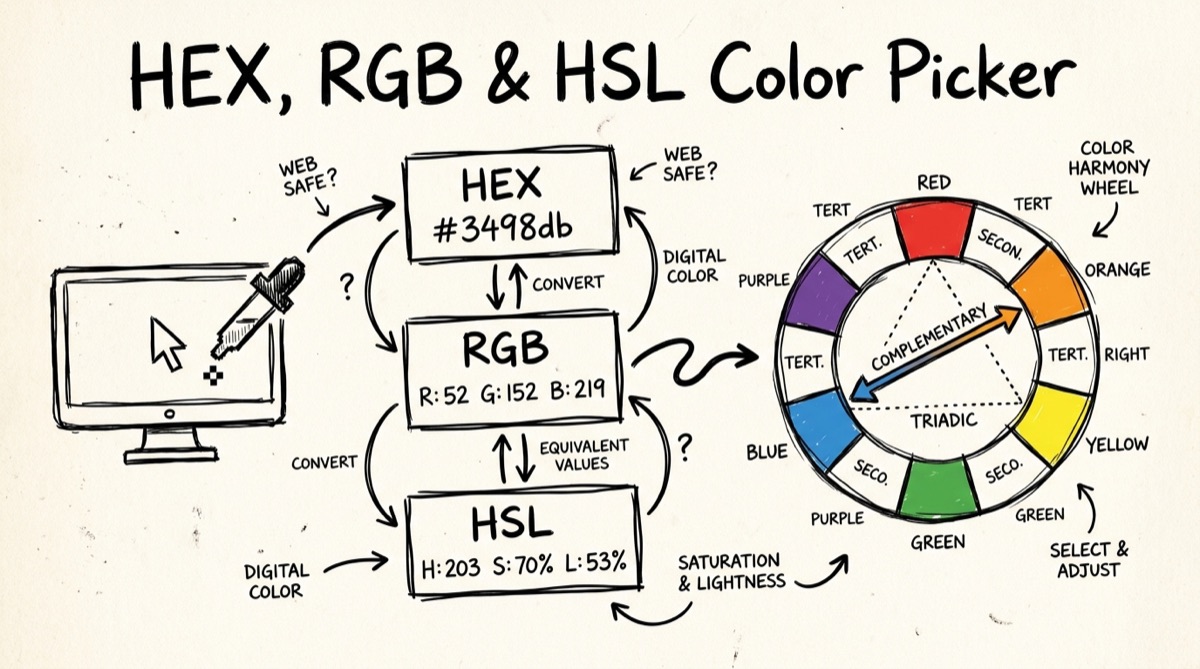
This guide covers what HEX, RGB, and HSL actually encode, why HSL is the format designers reach for when tweaking a color, how complementary/analogous/triadic harmonies work under the hood, and how to do all of it with the orangebot.ai color picker — a manual picker and converter that runs entirely in your browser.
HEX vs RGB vs HSL — What Each Format Actually Encodes
All three describe the same sRGB color space. They differ in what a human editing the value has to think about.
- HEX (
#3b82f6): Six hexadecimal digits, two per channel — red, green, blue, each 00–ff. Compact, the default in CSS and design tools, but opaque to read. You can't look at#3b82f6and know it's "medium blue, fairly saturated" without converting it in your head. - RGB (
rgb(59, 130, 246)): Same three channels as HEX, written in decimal (0–255) instead of hex digits. Easier to reason about individual channel values — useful when a bug report says "the red channel is too high" — but still doesn't map to how people describe color ("a bit lighter", "more muted"). - HSL (
hsl(217, 91%, 60%)): Hue (0–360° around a color wheel), saturation (0–100%, how far from gray), lightness (0–100%, how far from black/white). This is the format that matches how people actually talk about color. "Make it lighter" isl: 60 → 70. "Make it less saturated" iss: 91 → 40. The hue doesn't move unless you move it.
None of the three is "more correct" — they're the same color, three different dials. The orangebot picker keeps all three in sync: edit any HEX, RGB, or HSL field and the other two update immediately, so you can convert in whichever direction you need without doing the math.
Why Designers Think in HSL
The reason HSL wins for editing (as opposed to storing) color is that it separates three independent concerns that HEX and RGB tangle together.
In RGB, lightening a color means increasing all three channels proportionally — easy to get wrong, and you can't do it without a calculator. In HSL, lightening a color is one number: raise l. Want the same color but muted for a disabled state? Lower s. Want the brand color's darker "pressed" variant for a button? Lower l by 10–15 points and leave h and s alone.
This is also why HSL sliders are the standard UI in every serious color tool — Figma, Sketch, the native macOS color panel — even though the file on disk usually stores HEX or RGB. You edit in HSL and ship in HEX.
Color Harmonies: Complementary, Analogous, Triadic
A "harmony" is just a fixed hue offset from your base color, picked because certain angular relationships on the color wheel read as pleasing together. The orangebot picker generates all three automatically from whatever color is currently loaded:
- Complementary — one color at
h + 180°. Maximum contrast; classic for a primary action button against a neutral background, or a single accent color against its opposite. - Analogous — two colors at
h + 30°andh − 30°. Close neighbors on the wheel; low contrast, cohesive, good for gradients or a palette that needs to feel like "one family." - Triadic — two colors at
h + 120°andh + 240°, evenly spaced around the wheel with your base color. Balanced contrast; good when you need three distinct-but-related colors (e.g., three chart series that shouldn't clash).
Under the hood this is nothing more than h = (h + offset) % 360, holding saturation and lightness constant. You could compute it on a napkin. The value of the tool is not doing the math faster than you could — it's seeing all three harmony families as swatches next to your actual color, live, so you can eyeball which one fits before committing.
How to Use the Color Picker
- Start from any color. Type a HEX code, drag the native color swatch, or type RGB/HSL numbers directly — all four inputs stay in sync.
- Or grab it off your screen. Click the Eyedropper button (Chromium-based browsers only — see the FAQ). It calls the browser's native
EyeDropperAPI, which hands you the sRGB hex of any pixel on your screen, including outside the browser window. - Read off whichever format you need. HEX, RGB, and HSL each have a one-click copy button next to them.
- Check the harmony swatches. Complementary, analogous, and triadic palettes are generated from your current color. Click any swatch to load it as the active color and see its own harmonies.
- Reuse recent picks. The last 20 colors you've set are saved to your browser's local storage and shown as a strip of swatches — click one to jump back to it. Clear it any time with the trash icon.
Everything above happens in JavaScript in your tab. There's no upload, no network request carrying your color data, and no account — refresh the page and the recent-colors strip is still there because it's localStorage, not a server session.
The EyeDropper API, Honestly
The Eyedropper button only appears if your browser supports the window.EyeDropper API — currently Chrome, Edge, and other Chromium-based browsers. Safari and Firefox don't implement it as of this writing, so on those browsers you won't see the button at all; you'll need to fall back to the manual HEX/RGB/HSL fields (e.g., paste a hex you copied from another app, or use your OS's built-in color picker and type the result in).
When it is available, it works system-wide, not just on the current page — you can eyedrop a color from any open window, not only the browser tab. That's genuinely useful for pulling a brand color out of a screenshot, a PDF, or a native app, without needing to upload anything anywhere.
Using Extracted Colors in Tailwind and CSS Variables
Once you've settled on a base color and its harmonies, the fastest way to use them is as CSS custom properties:
:root {
  --color-primary: #3b82f6;      /* base */
  --color-primary-dark: #1e3a8a; /* HSL lightness -25 */
  --color-accent: #f6a63b;       /* complementary, h+180 */
}
In Tailwind (v4, CSS-first config), the same values drop straight into @theme:
@theme {
  --color-brand: #3b82f6;
  --color-brand-accent: #f6a63b;
}
<button class="bg-brand text-white hover:bg-brand-accent">
Because the picker gives you exact HEX and the matching HSL side by side, you can grab HEX for the CSS variable and keep the HSL numbers in a comment or design doc for anyone who needs to tweak lightness/saturation later without re-deriving them.
Honest Comparison: What This Tool Does and Doesn't Do
There's a category of "color picker" tool this guide deliberately isn't covering: image-based palette extraction, where you upload a photo or screenshot and the tool clusters the pixels into a dominant-color palette. imagecolorpicker.com, Adobe Color, and Figma's color picker all do this well — upload an image, get back the 5–8 most prominent colors with hex codes.
The orangebot tool is a different kind of tool: a manual picker and converter. You start from a color you already have (typed in, dragged from the swatch, or eyedropped off your screen) and it handles conversion between formats plus harmony generation. It does not accept an image upload and does not do dominant-color clustering — if that's what you need right now, use one of the image-extraction tools above.
Where the manual approach wins: no upload means nothing to worry about if the color came from something sensitive (an unreleased brand asset, a client mockup under NDA), it's faster for the common case of "I have one hex code and need it in three formats," and the harmony generation is instant rather than a secondary feature bolted onto an image tool. If your workflow is "I have a logo, give me its palette," reach for an image-extraction tool. If it's "I have a color, give me its siblings and its other formats," this is the faster path.
FAQ
Does this tool upload my colors anywhere?
No. Every conversion, every harmony calculation, and the recent-colors history all run in your browser's JavaScript. Nothing is sent to a server, and there's no account required.
Can I extract a color palette from an image with this tool?
Not currently — this is a manual picker and converter, not an image-upload tool. If you need to pull colors out of a photo or screenshot, an image-based extractor like imagecolorpicker.com or Adobe Color is the right tool for that specific job.
Does it support OKLCH or other modern CSS color spaces?
Not yet. The picker currently converts between HEX, RGB, and HSL. If your project needs OKLCH (increasingly common for color-mix() and wide-gamut P3 displays), you'll need a dedicated OKLCH converter for now.
Which browsers support the Eyedropper button?
Chromium-based browsers (Chrome, Edge, Opera, Brave) support the native EyeDropper API. Safari and Firefox don't currently implement it, so the button won't appear there — use the manual HEX/RGB/HSL fields instead.
How exactly does the harmony palette work?
It rotates the hue of your current color by fixed offsets and keeps saturation and lightness unchanged: complementary is +180°, analogous is ±30°, triadic is +120°/+240°. It's the same relationship a color wheel shows visually, computed automatically from whatever color you have loaded.
Are my recent colors saved anywhere besides my own browser?
No. The 20-color history lives in your browser's localStorage. It doesn't sync across devices and isn't sent anywhere — clear it with the trash icon whenever you want, or it'll persist locally until you do.
For more no-upload, browser-based utilities, see the full tools directory. If you're piecing together colors from a screenshot before you convert them, our guide on making screenshots look professional covers cropping and annotation first. And for the broader set of privacy-first tools worth having on hand, see AI tools for developers in 2026.
Grab the color picker and converter and skip the mental math next time you need a hex code in three formats.